This is the members' side, so you know what they are looking at when they call. To them it is My Account.
Signing In
The member enters the email address or mobile number you have on file. A code is sent there, they type it in, and they are in. There is no password to forget and no account to create.
| What they see | When |
|---|
| A code arrives by email or text | The contact matches a head of family or spouse on file |
| An offer to request access | The contact isn't found, or belongs to more than one family |
| A note that the portal is closed | Shabbos and Yom Tov, if you close it then |
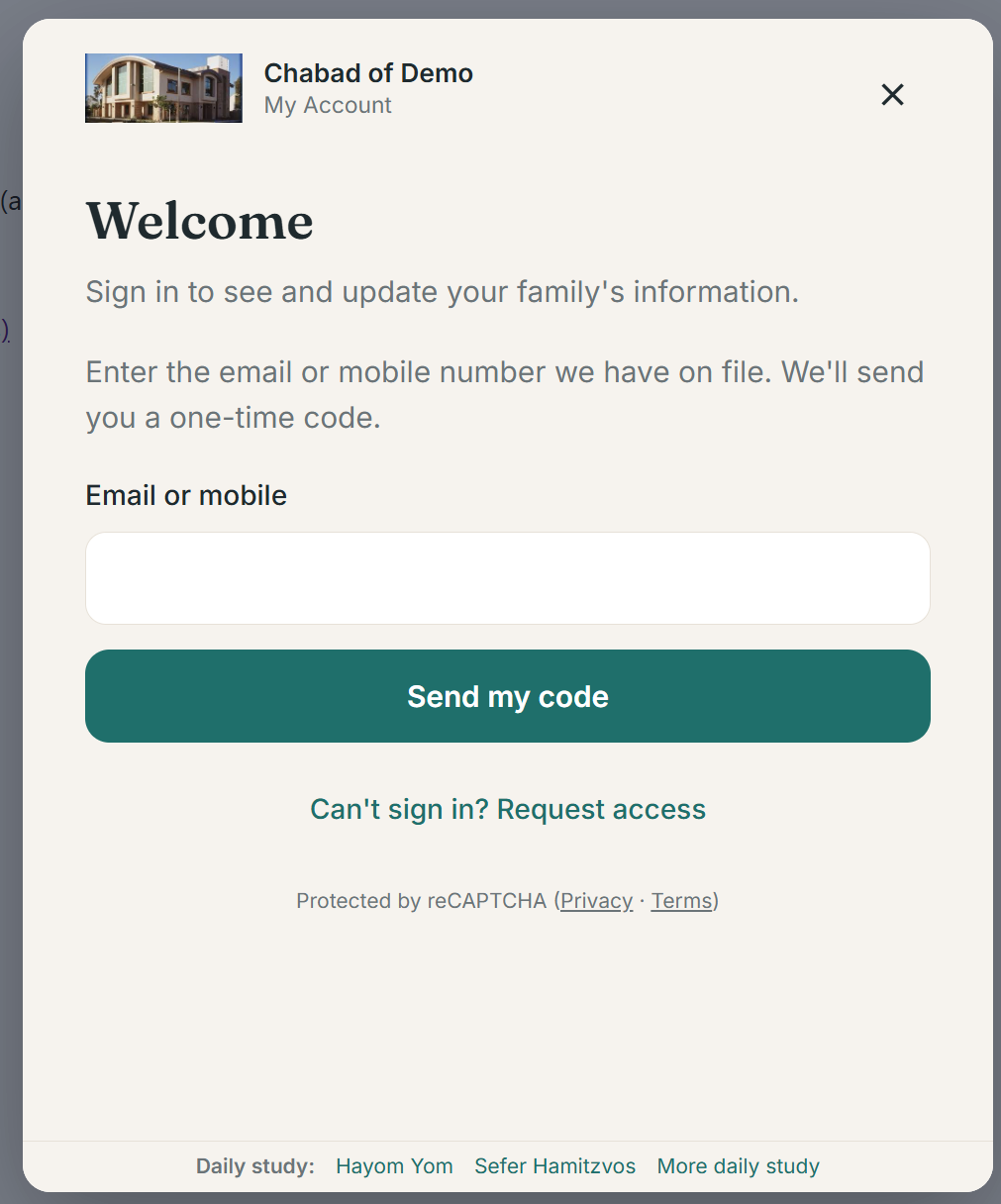
The sign-in screen.
A sign-in lasts while they are using it, and ends on its own after a while, so a portal left open on a shared computer doesn't stay open.
The Home Screen
A greeting, the family name, and a line for anything still waiting for the office. Beneath it are the screens you have turned on: Your family, Donation history, Bills to pay, Scheduled payments and Forms.
Your Family
Everyone on file: the member and their spouse, children, the anniversary and any yahrtzeits. Tapping a person opens their details — name, contact details, dates — and a person who was added, or a change not yet approved, is marked Waiting for review.
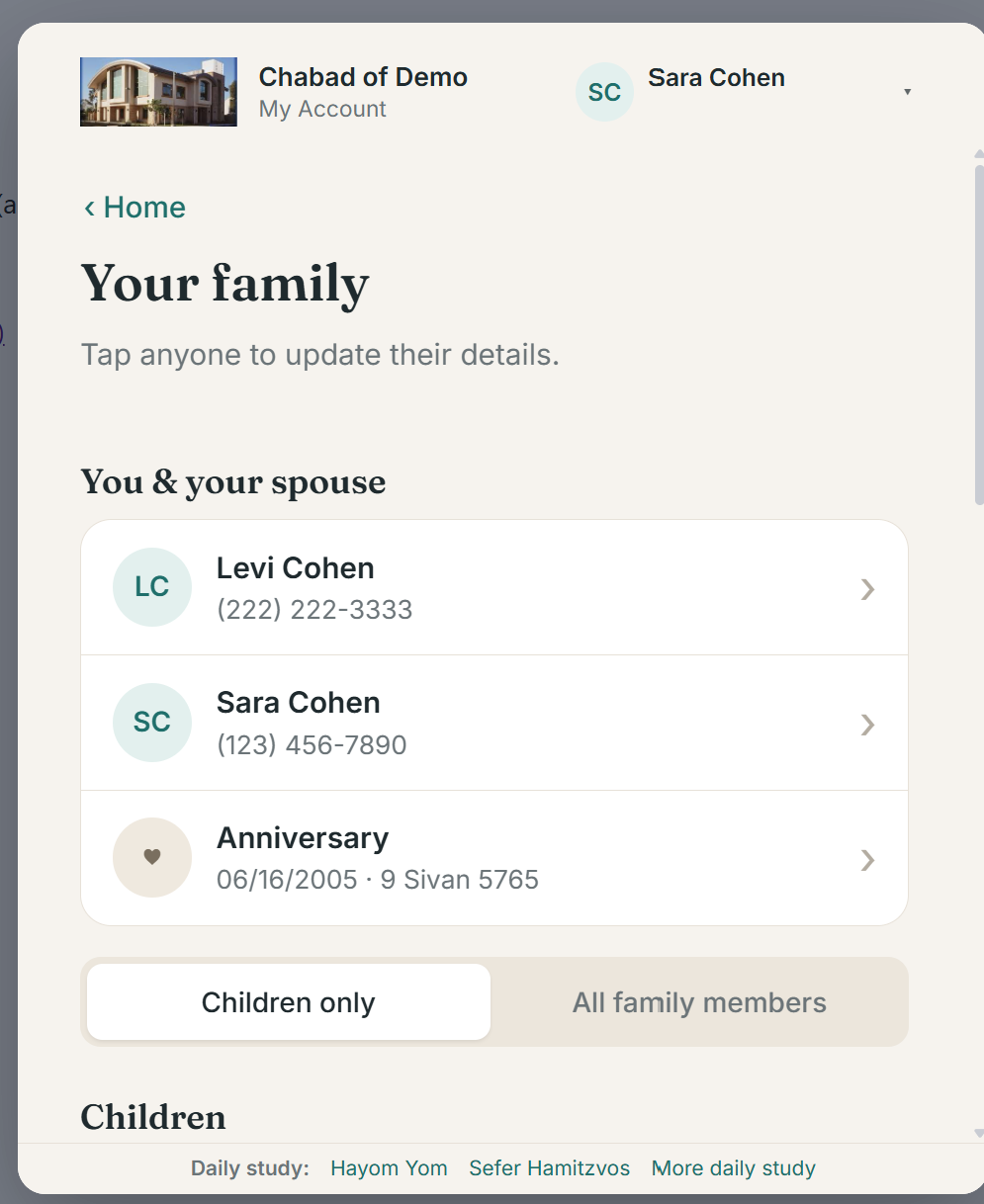
Your family.
They can add someone and say how they are related, using the relations you allow. The home address is edited in one place for the whole family.
Donation History
What the family has given, one year at a time, with the total for the year. Each line shows the purpose, the date and the amount. The screen ends with a line asking them to contact the office about anything that looks wrong — nothing here can be edited.
Bills to Pay
What is owed. The member ticks what they want to pay, and the total is shown. They can pay with a card they have saved, with the security code, or with a new card. When everything is settled the screen says so.
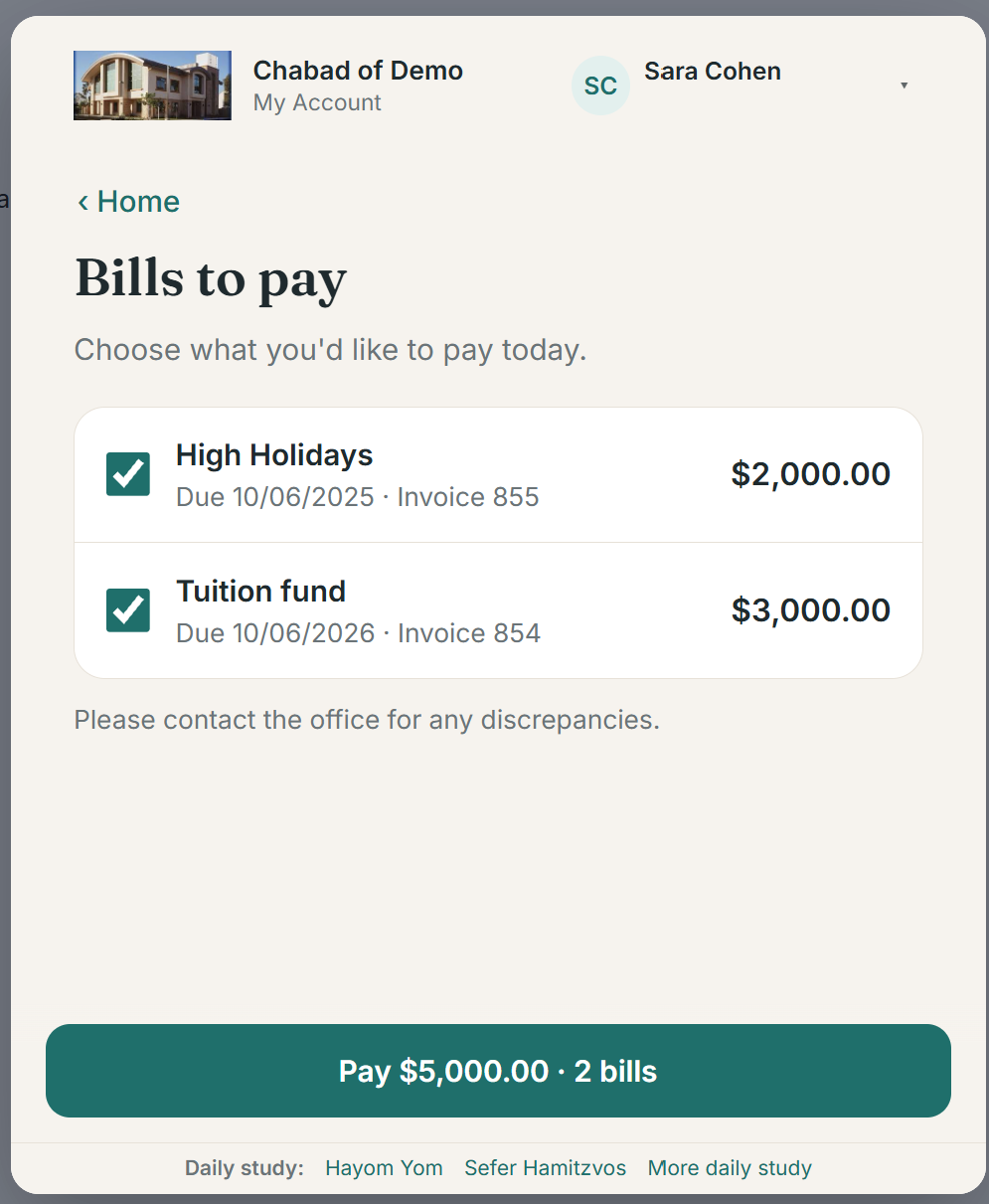
Bills to pay.
If you have turned on the confirmation email, a receipt goes out as soon as it is paid, with your thank-you letter when you've set that up.
Scheduled Payments
Standing payments, each showing what it is for, how often it runs, when the next one is due, how many are left, and the card it uses.
| What a member can do | Notes |
|---|
| Change the card | Always allowed, and the usual way a declined payment gets fixed |
| Change the amount | Only if you allow it. It is either held for review or applied at once |
| Pay what is overdue | A declined payment can be paid with another card there and then |
Where several past payments are open, the portal tells the member the office will review them and asks them to get in touch about which ones to charge. Nothing is charged behind their back.
Forms
The forms you have marked for the portal. The member opens one and fills it in with their details already in place, and the submission comes in attached to their family rather than as a stranger's.
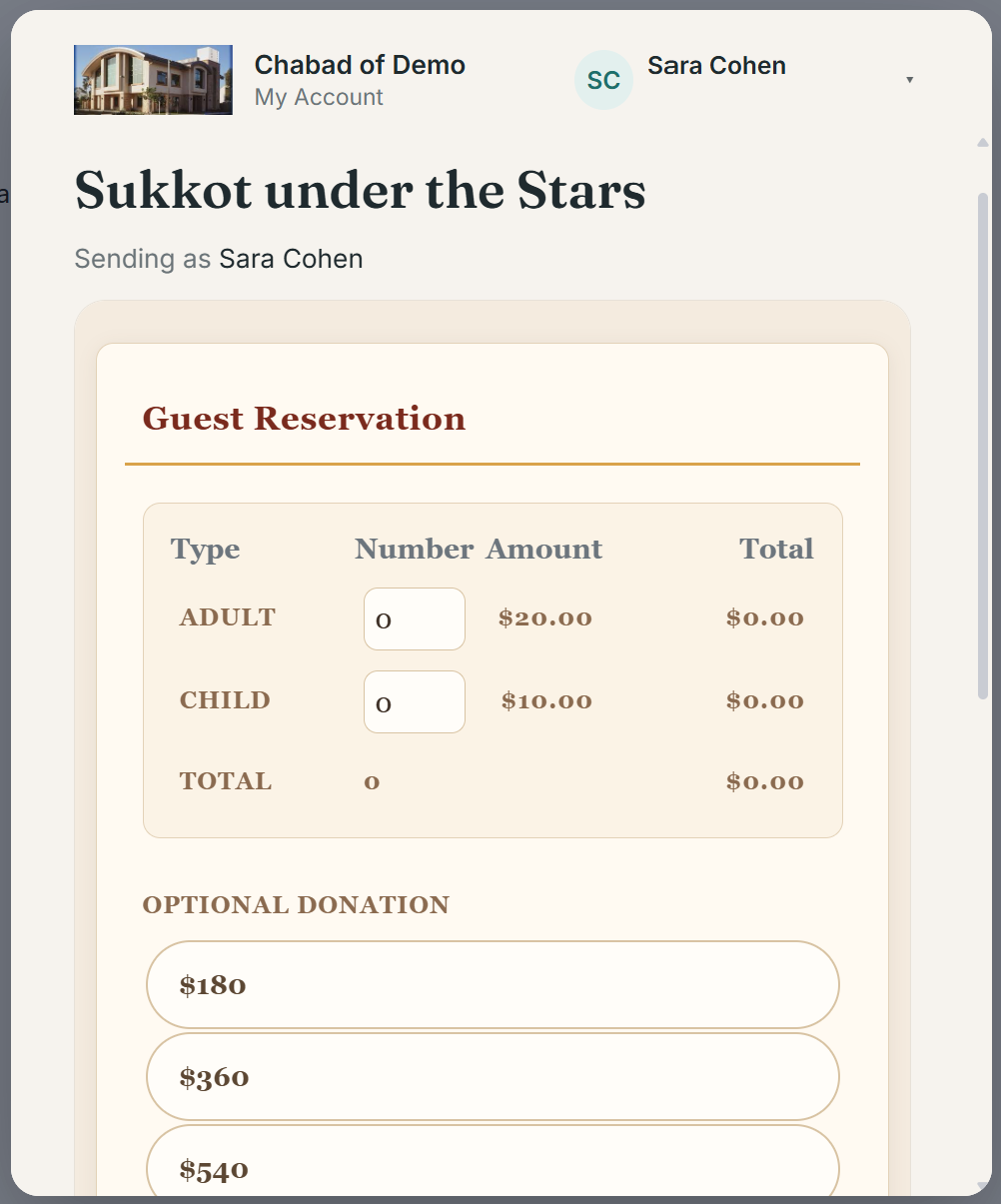
A form opened from the portal, with the member's details already known.