Once members start using the portal, the work arrives in one place: Members Portal in the sidebar. A number on it shows how much is waiting, and the dashboard shows a card when something needs you.
The Five Tabs
| Tab | Holds |
|---|
| Changes | What members have sent about their details, waiting for approval. See Reviewing |
| Access requests | People who couldn't sign in and asked for access |
| Payments to check | Payments where the card company's answer never arrived |
| Activity | Every sign-in and action, with the family and the address it came from |
| Families | Who can sign in, who has, and who hasn't |
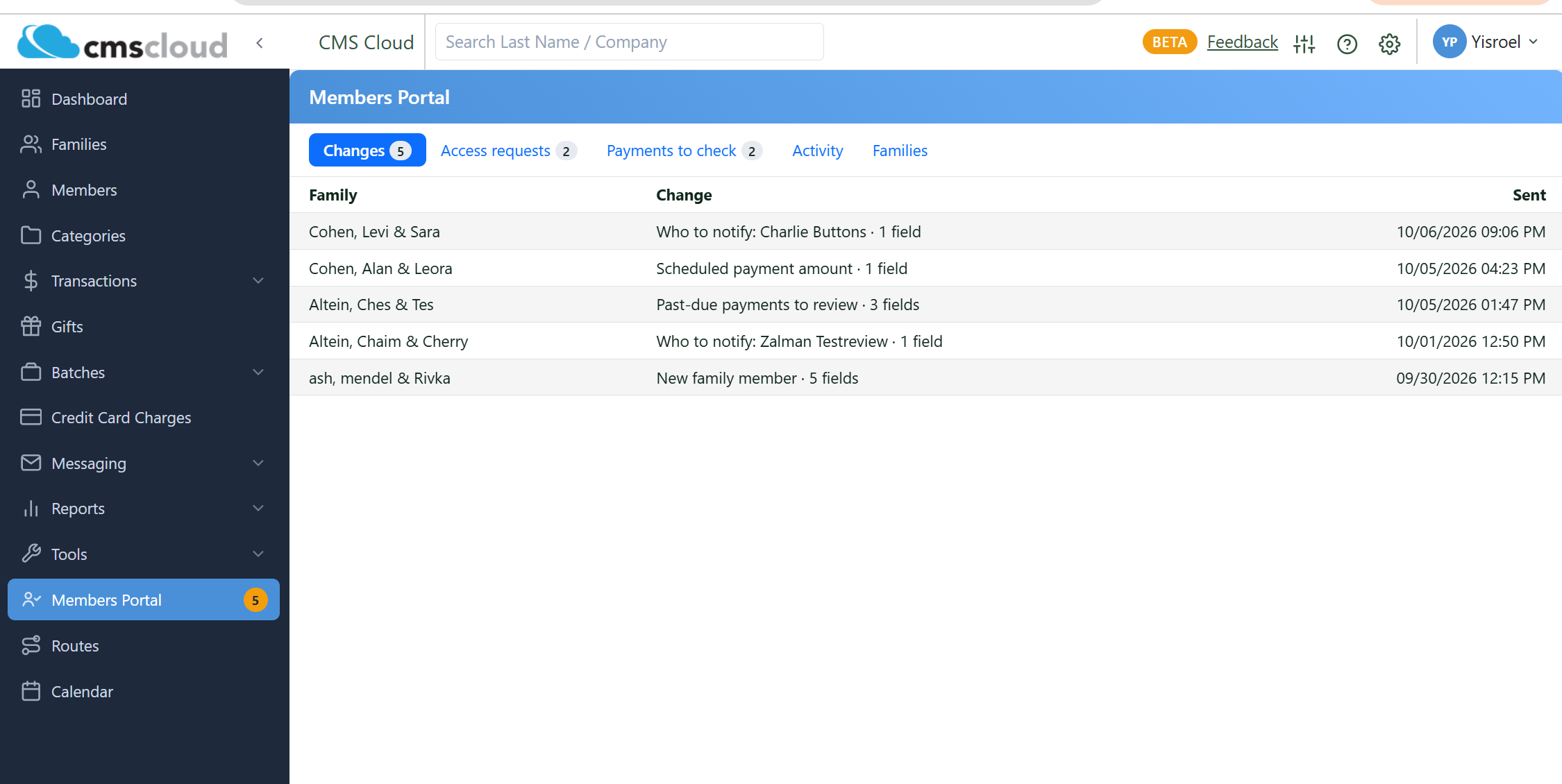
The Changes tab, with the waiting count on the sidebar.
Access Requests
Anyone who can't sign in — their email isn't on file, or it belongs to another family — can send a request from the sign-in page. Each shows the name, the contact they gave and their message.
Sort them out in the family's record: add the email or mobile as that person's primary, and they can sign in. Then mark the request Handled, or Dismiss it. Filters across the top show New, Handled, Dismissed or All, and a dismissed request can be moved back to new.
Payments to Check
If the card company doesn't answer while a member is paying, the payment is parked here rather than guessed at. Each row names the family, the bill and the amount.
Check the payment in your card company's own system, then:
| What you found | What to press |
|---|
| It was never charged | Not charged — release. The bill opens again so the member can pay it |
| It was charged | Charged — record payment, with the transaction number. The payment goes on the bill; no card is charged again |
Families
The Families tab is the picture of who is using the portal, filtered by:
- All families
- Can sign in, never have
- Have signed in
- Can't sign in
- Access turned off
- Info-review email sent
Export CSV takes the list out as it stands — useful for chasing the families who have never signed in.
On a Family's Page
Each family has a Members Portal section of its own, which shows the contacts that can sign in, and lets you:
- Turn access off for that family, and on again.
- Send the info-review email — a note showing the family what you have on file, masked, with a link to check it. The wording is set in the portal settings.
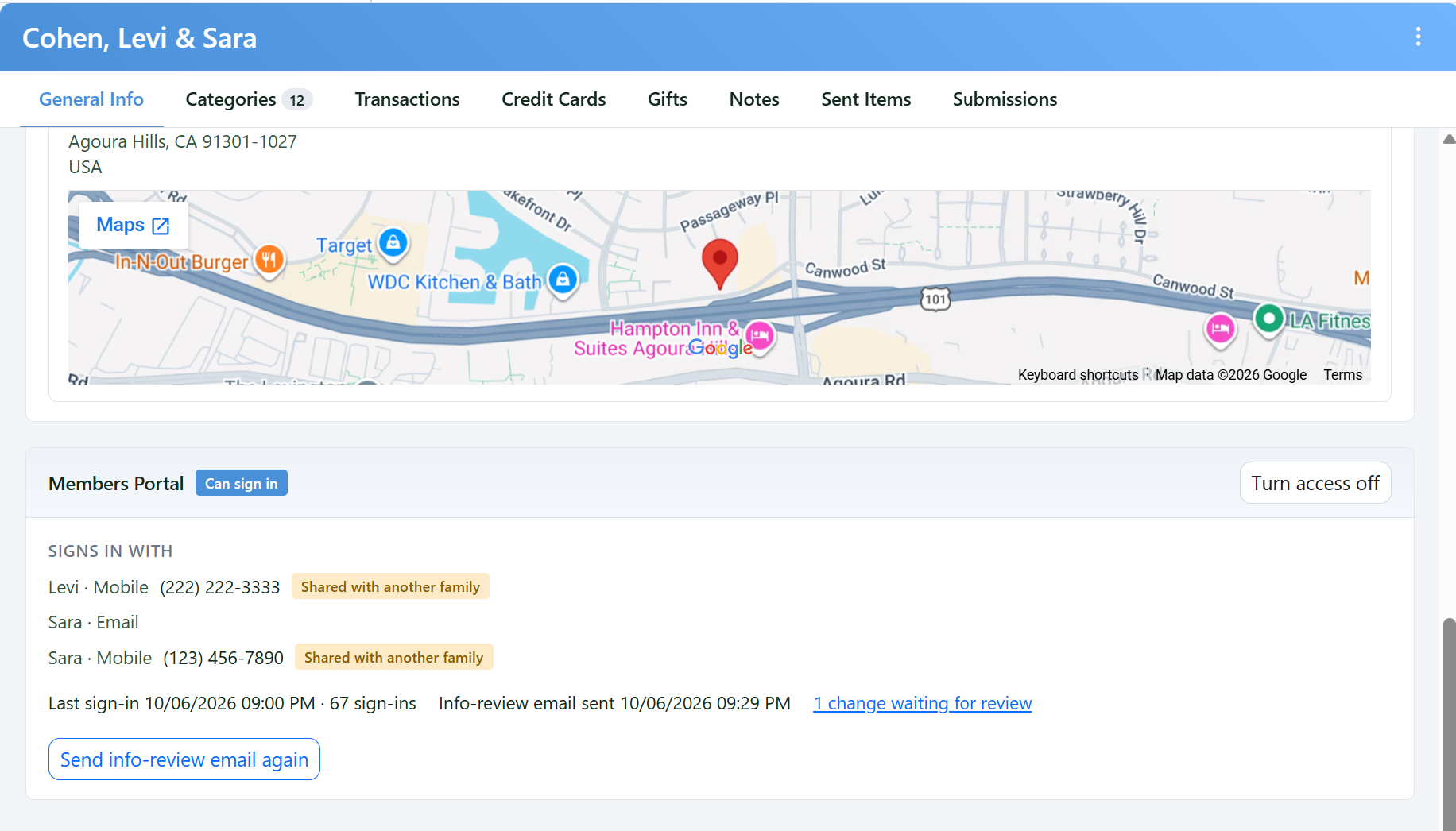
The Members Portal section on a family's General Info tab.
The info-review email is the usual way to get families in: it shows them something is out of date without exposing their details to whoever opens the mail.
Activity
Activity is the record: sign-ins, changes sent, payments, forms. Each line gives the time, the family, what happened and the address it came from. It is the place to look when someone asks whether a change really came from them.