The AI Connector links your own Claude or ChatGPT account to CMS Cloud, so you can ask questions about your organization's data in plain English and get an answer worked out from your real records — how many families gave this year, who pledged and hasn't paid, which neighborhoods your donors are in. It can also do some of the typing for you: write a note, set a follow-up, and record a check that came in the mail.
You are not uploading anything or exporting a file. The AI asks CMS for exactly what it needs, each time you ask a question.
Claude and ChatGPT are the two this article walks through, because they are what most people have. The connector is built on MCP, the standard both of them use for this, so any AI app that can add a custom connector or a remote MCP server can connect to CMS the same way: give it the address from the next section and sign in.
What It Does Today
Today the connector reads. It can reach your families, members, giving history, pledges and balances, categories, notes, yahrtzeits, routes, submissions and the rest of your organization's records, and it can count, total, group and compare across all of them in a single question — which is the part a report can't do.
It reads as though you held every role, so it sees private families and private notes too. That is why it is for administrators only.
It also enters two kinds of thing for you: notes and follow-ups, and payments a family has already made. Both are off until an administrator turns them on, each is marked in CMS as having come from AI, and everything either one enters is listed under Changes by AI with an undo beside it.
Notes and follow-ups
It can put a note on a family or on one member, add to a note that is already there, and set, move or close a follow-up reminder for you. In your own words, mid-conversation:
- I just got off the phone with the Steinbergs about the dinner — they're taking two seats and want to sit with the Weisses. Note it on their family as a phone call and remind me Thursday at 10 to confirm.
- Mrs. Feldman is in Maimonides until Sunday. Put a private note on the family and remind me tomorrow morning to visit.
- Add to yesterday's note on the Kleins that the check came, and mark my follow-up done.
- Here are my notes from tonight's board meeting. Put the part about the Rosenbergs on their family as a meeting note.
A note that is already there is never rewritten. What the AI adds goes underneath as its own paragraph, with the date and time on it, so you can always see what was there before. If no note type fits what you are describing it will offer to add one — Hospital visit, say — rather than file it under the wrong one.
Payments
It records a payment or donation a family has already made — a check, cash, Zelle, a card you charged somewhere else. It never charges a card, and nothing is sent to the donor.
The one to try first: take a picture of a check and hand the picture to the AI.
- This came in today's mail — with a photo of the check. It reads the name, the amount, the date and the check number, finds the family in CMS, and shows you exactly what it is about to enter: the family and address, the amount, the date, the method, the check number and which category the money goes to. Nothing is saved until you say yes.
- Four checks from today's mail — with four photos. Same thing, four times, and it will tell you if it can't find one of the families or sees two that match.
- $180 cash from the Rubins at the farbrengen tonight, to Building Fund.
- $500 check from Dr. Mandel, #2041 — $360 to Building Fund and $140 to Tuition.
- Zelle for $250 from the Goldsteins this morning, Chai Club, in memory of her mother.
A payment it records goes on the family, not against a bill. If that family has open bills the AI will tell you so, and you apply it to the bill in CMS the usual way. The receipt and the thank-you letter follow the category exactly as they would if you had typed the payment in yourself.
Some things stay out of it by design, however far the connector goes: it will never charge a card, delete or merge records, or send email or text messages.
Before You Connect
Two things are worth being clear about with whoever signs off on this.
Your data goes to the AI company. Whatever the AI reads from CMS is sent to Anthropic or OpenAI under the account that is connected, and is handled under that company's terms, not ours. If other tools are connected to the same AI account — email, a calendar, a file store — the AI could pass CMS data to them. CMS Cloud cannot control what happens to data once it leaves CMS.
Second, each person connects their own AI account. One administrator connecting does not connect anybody else, and you can disconnect any of them at any time.
Who can use it
Administrators only: the primary user, or a user whose Admin role has read, edit, add and delete. CMS checks this every single time the AI asks for something, so a person who stops being an administrator stops having access straight away. See Users and Permissions.
Step 1: Turn It On in CMS
Go to Settings → Integrations → AI Connector and switch on Enabled. The first time, you are asked to accept the AI Connector terms.
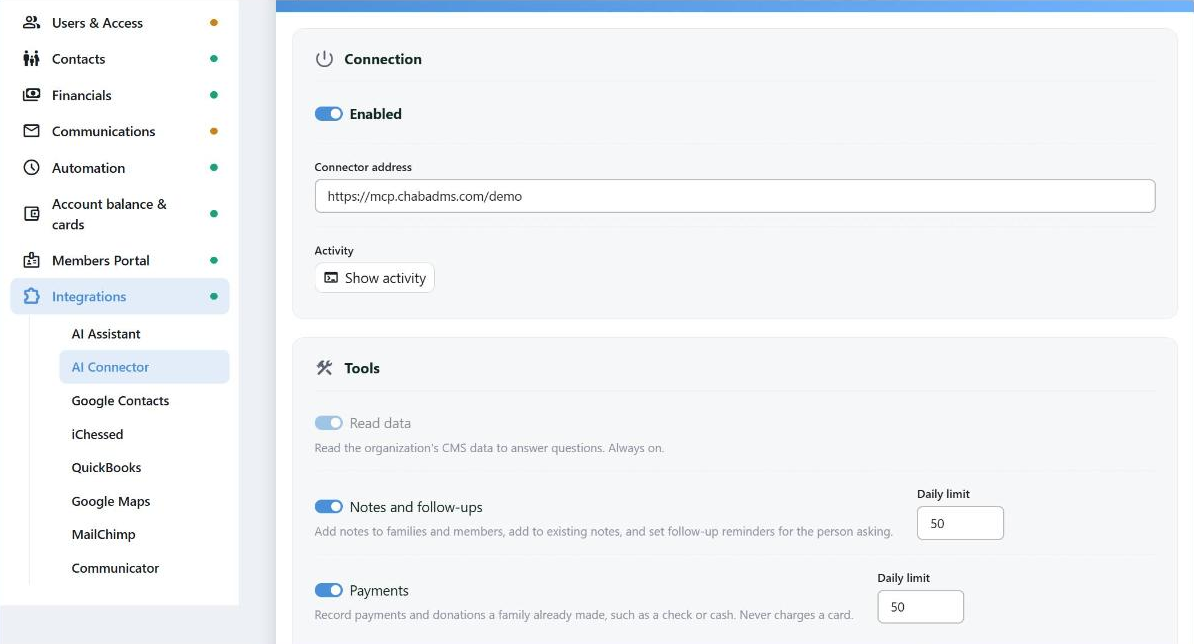
Enabled and the Connector address at the top; underneath, the tools. Read data is always on; the two that enter data you turn on yourself.
Connector address appears once it is on. It ends with the first part of your CMS address, so if you work at yourorg.chabadms.com it reads https://mcp.chabadms.com/yourorg. Copy it; you will paste it into Claude or ChatGPT in a moment.
Turning Enabled off again stops every connected app at once, for everybody. It is the switch to reach for if you ever want it all to stop.
Choose what it may do
Under Tools, Read data is always on — that is the answering part. The two that enter data start off:
- Notes and follow-ups
- Payments
Turning either one on shows you what it allows, and you confirm. Each has a Daily limit next to it — 50 a day to begin with, and you can set it anywhere from 1 to 500. It is there so a misunderstanding stays small: reach the limit and the AI is told to tell you so, and you enter the rest in CMS or carry on tomorrow.
Turning a tool on after you have already connected? Your AI app learned what the connector could do when it connected, so it may not see the new tool yet. Disconnect the connector in Claude or ChatGPT and connect it again, and the tool appears.
Think about what you paste in. If you hand the AI an email, a document or a photo, anything written in it is text the AI reads — and someone could put an instruction there on purpose. That is what Changes by AI and the undo are for, and it is the reason to read what the AI says it is about to save before you say yes.
Step 2: Connect Your AI App
This part happens in Claude or ChatGPT, not in CMS. Both call it a connector and both want the same thing from you: a name and the address you just copied.
Claude
In Claude, go to Customize → Connectors, click + Add, then Add custom connector.
Give it a name you will recognize — CMS Cloud — paste the Connector address as the remote MCP server URL, and click Continue. Claude works out the sign-in settings for itself; leave them as it found them and continue.
Under Authentication, choose Sign in now. Under OAuth client, leave Use Claude's published identity, which is the recommended one. Leave Request headers empty — CMS doesn't use an API key here. Then click Add.
On a Team or Enterprise plan the connector is added once for the whole organization, by an Owner under Organization settings → Connectors. Everyone else then finds it under Customize → Connectors and clicks Connect to sign in as themselves.
To use it in a conversation, click + at the bottom left of the chat, choose Connectors, and switch CMS Cloud on.
ChatGPT
In ChatGPT on the web, go to chatgpt.com/plugins, click the plus button, and choose Add custom MCP server.
Enter a name such as CMS Cloud. Under Connection, put the Connector address in Server URL. For the authentication option choose OAuth.
Read the warning ChatGPT shows about connecting an outside server, choose I understand and want to continue, then Create as a plugin. Install it, and then call it in a conversation by typing @ and picking it from the list.
Custom MCP servers are not on every ChatGPT plan, and in a Business, Enterprise or Edu workspace an administrator may have to allow them first. If you can't find the option, that is why.
Step 3: Sign In
The first time the AI app connects, it sends you to CMS Cloud to sign in. Three screens, once:
- A CMS Cloud sign-in page asks for the first part of your organization's CMS address — if you work at yourorg.chabadms.com, that is yourorg.
- Your normal CMS login.
- A page naming your organization and you, asking whether to connect the AI app. Choose Connect.
Only go through those screens when you have just started connecting from your own AI app. If a link to that sign-in page arrives any other way — by email, by text, from somebody who says they are helping you — cancel it.
Asking It Things
Ask in plain English. The AI reads a guide to your data first, then works out how to answer. These are questions; the notes and payments above are the same conversation, asking it to write something down rather than look something up.
- How many families gave in the last twelve months, and how does that compare with the year before?
- Which families pledged to the building fund and still owe something? Give me the balance for each.
- Who has a yahrtzeit next month, and is anyone set to be notified?
- What did we raise by category this year, by month?
- Which of last year's donors haven't given anything this year?
A few habits make the answers better:
| Habit | Why |
|---|
| Say what you mean by your own words | A word like "donor" means whatever your organization has decided it means. Say which category or which giving you have in mind and the answer matches what you asked |
| Ask it how it got the number | It can show you what it counted, which is how you catch a question it read differently from the way you meant it |
| Ask follow-up questions | Narrow it, widen it, break it down another way. It keeps the thread, so the second question is quicker than the first |
It reads your live data, so the answer reflects CMS as it is at that moment. Ask the same question next month and you get next month's answer.
Keeping an Eye on It
Back on Settings → Integrations → AI Connector, two sections tell you what has been going on.
Activity
Show activity opens a log of what the connected apps have asked for, newest first, with the time each was asked. Refresh brings it up to date and Show older goes further back.
Changes by AI
Every note and every payment an AI entered, newest first, each one a link straight to the family it landed on. Show older goes further back.
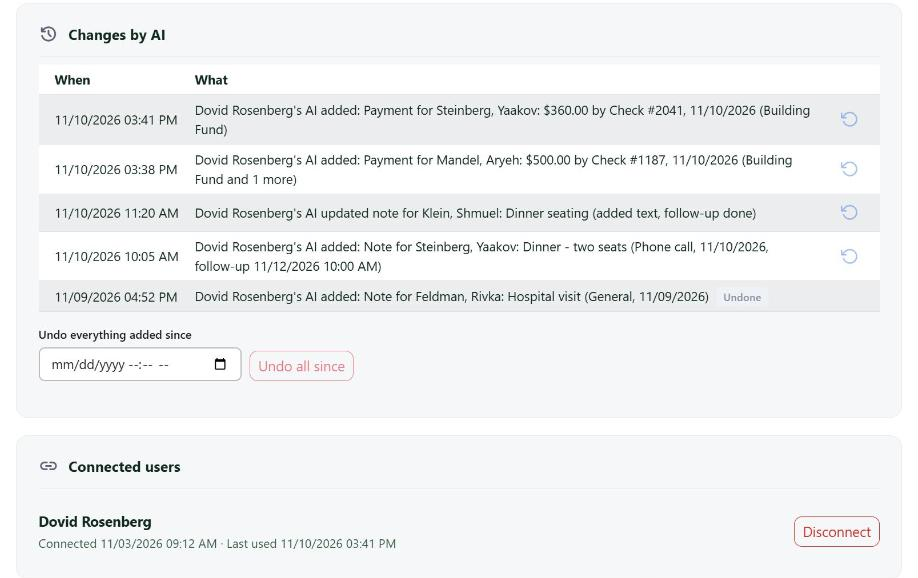
Everything an AI entered, with an undo on each line and one for a whole stretch of the day.
- Hover a line and click the undo arrow to take that one back. A note is deleted; an addition to a note, and the follow-up with it, goes back to how it was; a payment is deleted.
- If someone has since changed that record in CMS — or the payment has been deposited, sent to QuickBooks or put in a batch — the undo leaves it alone and tells you, rather than undoing something you have built on.
- Undo everything added since takes a date and time and undoes the lot, for the morning when something clearly went wrong. It reports how many it undid and names any it left as they were.
Undone lines stay in the list, marked Undone, so the record of what happened doesn't disappear with the change.
Connected users
Everyone who has connected an AI app, with when they connected and when they last used it.
- Disconnect cuts that person's AI app off. Their CMS login is untouched — only the AI connection stops.
- Allow again lets them connect once more.
Disconnect somebody the moment they leave, the same as you would revoke their CMS login. The two are separate.
If Something Doesn't Work
| What you see | What it usually is |
|---|
| The AI says it can't reach CMS, or isn't connected | Enabled is off, or that user has been disconnected. Check both on the AI Connector page |
| Sign-in is refused | That user isn't an administrator. Administrators only, checked on every request |
| "We couldn't find that organization" | The first part of your CMS address was mistyped on the sign-in page — yourorg, not the whole address |
| It says it can't add notes, or can't record payments | That tool is off under Tools, or today's limit for it is used up. If you only just turned it on, disconnect the connector in your AI app and connect it again |
| It says a payment like that is already there | CMS spotted one that looks the same and stopped. Check the family in CMS; if yours really is a second payment, tell the AI so and it will go ahead |
| A note or payment landed on the wrong family | Undo it under Changes by AI and tell the AI which family you meant. Names that sound alike are the usual cause |
| Access is paused | CMS pauses the connector by itself if something looks wrong or the load is heavy. Open a support ticket |
| An answer looks wrong | Ask it how it worked the number out. Nearly always it read one of your own words — "donor", the name of a category — differently from the way you meant it |
Treat an answer the way you would treat one from a new member of staff who is quick but new: worth having, worth checking before it goes to a board meeting or a donor.