Everyone who works in CMS Cloud should have their own login. Not for the sake of tidiness: shared logins knock each other out, every note and every change is stamped with whoever was signed in, and when somebody leaves you want to close one door rather than change the lock for everybody.
Separate logins also let you decide what each person can reach. The bookkeeper doesn't need the membership list, and the volunteer entering Shabbos registrations doesn't need the credit cards.
Where It Lives
Go to Settings → Users & Access. The page has three parts: your own account at the top, your devices below it, and Application users — everyone who can sign in to your CMS.
What you see depends on who you are. Without the Admin role you see only your own account, where you can change your name, your phone, your password and your 2-step verification. With it, you see everybody.
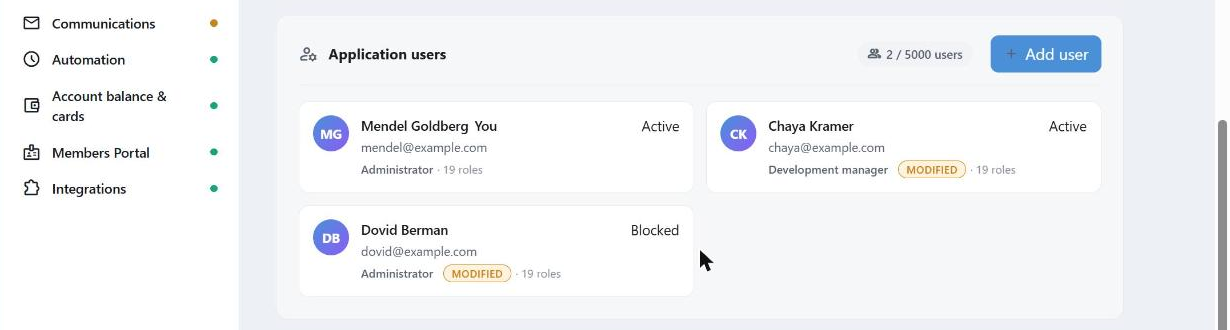
One card per user. The count beside Add user is how many of your allowed logins are in use.
Adding Someone
+ Add user asks for a first and last name, an email address and a password. You can also pick a job title, which sets their roles for you — see below.
Create sends them an activation email. Once they follow it, they can sign in.
The email address is their username and where account email goes, so use a real one that belongs to that person. Two people on one address is the shared-login problem wearing a different hat.
Job Titles
Rather than set two dozen permissions by hand for every new person, pick the Job title that matches what they do. Each one is a ready-made set of roles — a bookkeeper gets the financial side, someone running programs gets contacts and categories.
Choosing a job title shows what it includes before you commit: a plain description, then the areas it grants full access to and the ones it lets the person edit.
From there you can adjust anything. Once you do, the title is marked MODIFIED, and the panel tells you the actual roles differ from the preset — so a title is never a claim about what someone can do, only where they started. Re-picking the title puts everything back.
Changing the job title overwrites that user's roles entirely. If you have hand-tuned somebody's access, picking a new title discards your changes.
Roles, One by One
Show details opens the full list — Contacts, Transactions, Deposits, Credit Cards, Gifts, Reports, Web forms and the rest. A check mark means the person has that area; an empty box means they don't see it at all.
Most roles open to reveal four levels, and they build on each other:
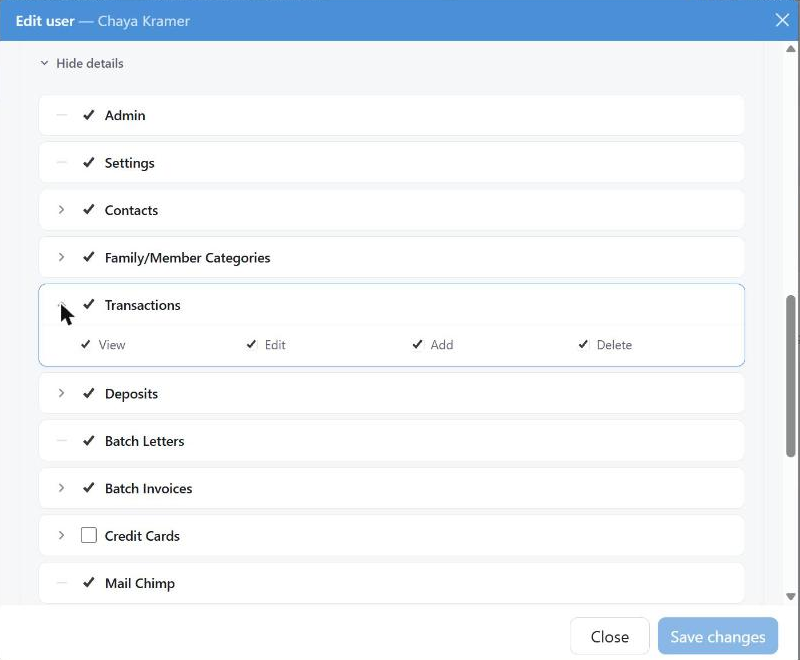
Transactions opened up. Credit Cards is unchecked, so this user never sees a card number.
| Level | What it allows |
|---|
| View | See what is there, and nothing more |
| Edit | Change what already exists |
| Add | Create new records |
| Delete | Remove them |
View is the foundation — the others have nothing to act on without it. A volunteer who should enter donations but never undo one gets View, Edit and Add on Transactions, and no Delete.
Two roles have no levels, because they are simply on or off: Admin, which is access to this page and to everyone else's permissions, and Settings.
Changing Someone's Access
Click a user's card. Identity holds their name, email and phone; Access holds the two actions you reach for when something changes:
- Revoke access — they can no longer sign in. Their work stays exactly where it is, with their name on it. The card then reads Blocked, and restoring them is the same button in reverse.
- Reset password — set a new one for someone locked out.
Save changes keeps whatever you altered; Close walks away from it.
Revoke rather than delete when somebody leaves. Deleting a person who entered three years of donations takes their name off three years of history.
2-Step Verification
With 2-step verification on, signing in also needs a code sent to the user's phone — so a stolen password on its own is not enough. Your own is under My account: verify your phone number, then check Enable 2-factor authentication.
For somebody else, open their card, verify their phone (CMS sends them a code to read back to you), then check Require 2-factor authentication for this user.
If anyone on your account is without it, a banner at the top of the page says so and counts them.
Worth turning on for everyone who can see donations or card details. It is the single biggest difference between a guessed password being an annoyance and being a problem.
How Many Users
The counter beside Add user shows how many active logins you have against the number your plan allows. Revoking somebody frees their place; when you are at the limit, Add user says so rather than failing halfway.