Today some of your members are saved in your phone and plenty are not — so a call from one of them can come up as a bare number, and when you meet someone on the go the number you save stays on the phone, where CMS never hears about it.
Google Contacts integration closes that gap. Connect your Google account once, and the members you care about appear in your own phone's contacts and stay up to date. Save someone new on your phone, and CMS asks you where they belong.
What You Get
Worth having
- Caller ID for your community. A member rings and you see their name, not a number — on whatever phone you carry, with no app to install.
- Numbers you save actually reach CMS. Add a contact on your phone and it turns up in CMS for you to file as a new family, a spouse, or a member of a family you already have.
- Faces, not initials. Where a member has no photo in CMS, the picture from your Google contact can stand in — so the people you deal with look like people.
- It keeps itself current. Change a number in CMS and your phone follows within minutes. No exporting, no re-importing, nothing to remember.
- CMS stays clean. Straightforward changes from Google land on their own; a deletion, or a clash where both sides changed, waits for you to decide. Every change either way is listed in History, and any of them can be undone.
How Much Work Is It?
Almost none, and none of it is daily. You connect your account once and set a filter — a handful of checkboxes and the categories you work with — then leave it to fill your phone. After that it runs on its own: you edit a member in CMS the way you always have, and the phone follows.
The one thing that ever asks for your attention is a contact you saved on your phone that CMS doesn't recognize. It waits on a list, and filing it is one click on the choice CMS suggests. If you never get to it, nothing breaks and nothing is lost — untouched ones drop off the list after 30 days, and the sync carries on regardless.
Everything below the setup steps is reference, not homework. Read it when a question comes up; you do not need any of it to get going.
Google Contacts Integration is part of
Premium, along with the
Members Portal and
Upload Donations. Contact tech support to add Premium to your account. Each user who wants the sync then needs the
Google Sync permission, and a Google account on your organization's own email domain — a personal Gmail address cannot be connected.
Connecting Your Account
Four steps, done once. Only the last one takes any real time, and it runs without you.
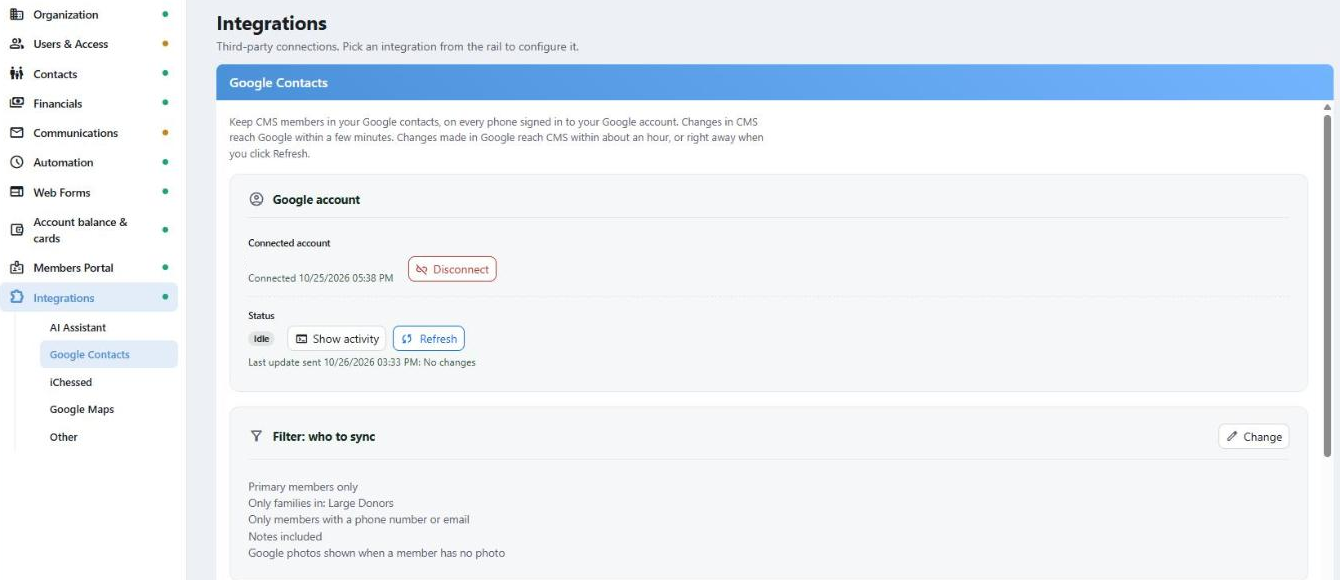
Settings once it is connected: which account, what the sync is doing, and who it covers.
Go to Settings → Integrations → Google Contacts and click Connect. Google asks you to sign in and to allow CMS Cloud to manage your contacts. Everything after that happens in CMS.
Under What changes you decide which members reach your phone:
| Setting | What it does |
|---|
| Members | Primary members only keeps it to the adults you deal with. Everyone in the family includes the children |
| Only families in these categories | Narrows it to the people you actually work with — your shul, your class, your route |
| Leave out families in these categories | Keeps a category out, whatever else matches |
| Only members with a phone number or email | Skips the records there is nothing to call or write to |
| Include family and member notes | Carries your notes into the contact, so they are on your phone too |
| Show Google photos when a member has no photo | Borrows the picture from your Google contact where CMS has none |
Start narrow. One category you work with every day proves the thing works, and widening it later is one checkbox.
Your Google account already holds numbers, some of them the same people. CMS reads your contacts and looks for the ones that are clearly the same member, then shows you what it found:
- Sure matches are linked for you.
- The uncertain ones are listed with the Google contact beside the CMS member, and you choose Link or Don't link.
Contacts that aren't linked are left exactly as they are. Nothing in your Google account is deleted, renamed or tidied up.
CMS then adds every member who matches your filter to your Google contacts, under a CMSCloud label. Thousands of members take a while; the status bar shows how far along it is, and you can carry on working or close the page — it keeps going without you.
Once It's Running
From then on it is quiet, and two things happen on their own:
- CMS to your phone — an edit in CMS reaches Google within a few minutes.
- Your phone to CMS — something you change or add in Google reaches CMS within about an hour, or right away if you click Refresh.
What CMS will not do is guess. Anything it can't decide for itself waits for you on the Google Contacts page in the sidebar, which carries a badge when something is waiting.
The Google Contacts Page
This is where the few things CMS won't decide alone end up. On a normal week it is empty or close to it, and the sidebar only shows a badge when something is actually waiting — there is nothing to check.
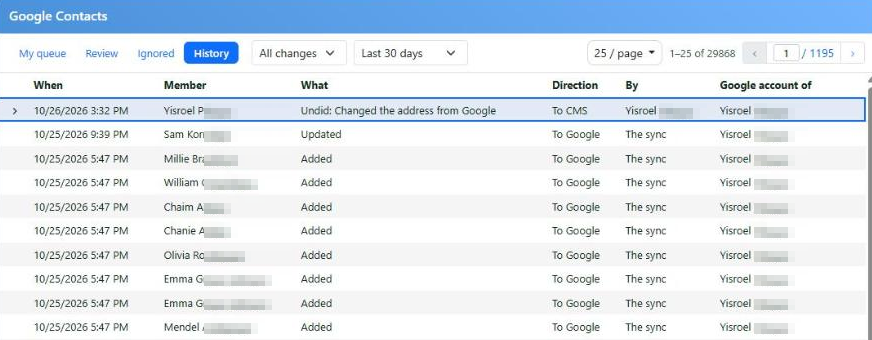
History: the sync working through the day. Surnames are blurred here.
Photos Come Along Too
Phones collect pictures of people. CMS usually has none. Tick Show Google photos when a member has no photo and the picture saved on your phone shows up beside that member in CMS — a list of names becomes a list of faces, and you recognize who you are looking at.
It is borrowed, not taken: the photo stays in your Google account, CMS just shows it, and only where CMS has no photo of its own. A photo you upload to CMS always wins.

The same family, two members: one has a photo in your Google contacts, the other doesn't. The small button in the corner fetches Google's latest.
One Member at a Time
Your filter decides the rule; the small Google icon on a member decides the exception. It tells you where that member stands — In Google, Not in Google, Adding, Removing, with the reason — and offers three choices:
- Add to my Google contacts — keep this member even though your filter leaves them out.
- Remove from my Google contacts — drop this one, whatever the filter says.
- Follow my filter — back to the rule.
The exceptions you make are listed on the settings page under Exceptions to your filter.
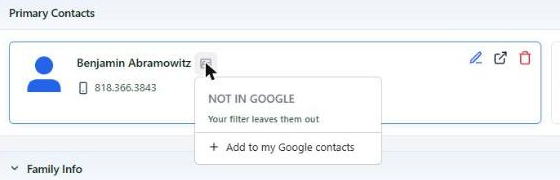
The icon on a member — here, someone the filter leaves out, with the option to keep them anyway.
Keeping an Eye on It
The settings page shows which account is connected and what the sync is doing right now — idle, syncing, adding members, paused, or needing attention — with a running activity list underneath, down to "checked for changes, none found". Refresh asks for a check immediately rather than waiting the hour.
Administrators also get All users' Google syncs: who has connected, which account, its status and when it last updated.
What It Will Never Do
- Delete anything in CMS. A contact deleted in Google is dropped from the sync, not from CMS.
- Drop or muddle what CMS holds. Change a number on your phone and CMS simply takes it. What it will not do on its own is remove a value, accept a field that changed in both places at once, or guess between two different numbers — those come to Review. Either way it is in History, and undoing one is a click.
- Go through the rest of your address book. It only ever touches the contacts it created or that you linked to a member. Everything else in your Google account — family, suppliers, the dentist — is left exactly as it is.
Disconnecting undoes the sync: the contacts CMS added are removed from your Google account again, and the CMSCloud label goes with them. Contacts you saved yourself, and anything CMS never linked, are left alone. Nothing in CMS is affected.
An administrator can do the same for someone else from All users' Google syncs — useful when a staff member leaves. It clears the synced contacts out of that person's Google account and turns off their Google Sync permission. Their CMS records, and everyone else's sync, are untouched.
What Your Phone Needs
The sync runs between CMS and your Google contacts. It needs nothing from a phone and works the same whether or not one is involved.
For those contacts to show on a phone, that phone needs the same Google account signed in with Contacts switched on — already the case on most Android phones. On an iPhone, add the Google account in Settings and turn Contacts on for it. A one-off, once per phone, and you can do it on as many phones as you like.