A family's card on file is what turns a pledge into money that arrives on its own. Save the card once, attach it to a bill, and CMS Cloud charges it on schedule — monthly, quarterly, or however the donor arranged it — and records every charge against that family.
This article covers getting set up and taking payments. The day-to-day work of watching what is due, chasing declines and renewing finished pledges happens on the Credit Card Charges page.
The Processor Behind It
Card processing runs through a gateway — Payrix or Authorize.Net. Yours is listed under Settings → Financials → Gateways. Add gateway opens a support ticket, because a new merchant account has to be set up with the processor before CMS can use it.
The card number itself never lives in CMS. It is stored with the processor, and CMS keeps the last four digits and the expiration so you can tell one card from another.
Putting a Card on File
Open the family and go to the Credit Cards tab, then + Add Payment Method.
| Field | What it is for |
|---|
| Card or Bank account | A card takes the number, expiration and CVV. A bank account takes the routing and account numbers, for donors who prefer to give by ACH |
| Billing details | Name, address and email. Use family contact info fills them in from the family record |
| Note | Yours to use — Rachel's personal card, business account |
| Available in Portal | Lets the family see and update this card themselves in the Members Portal |
A family can have as many as it needs. The tab lists each one with its expiration, when it was last charged, and your note. Expired cards are hidden until you tick Show expired.
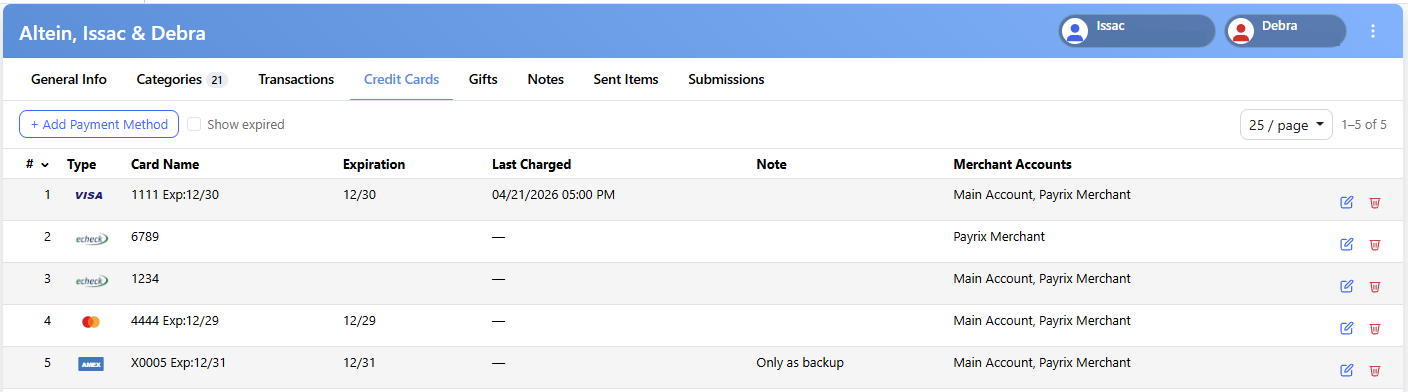
Cards and bank accounts on file for one family. The Note column is where "only as backup" belongs.
Charging a Payment Now
Enter the payment as you always do. In the charge box, choose the Department, then pick the Card — or + New Card to add one without leaving the payment.
Saving the payment runs the charge. You'll see Card charged — Payment saved, and the lines lock: the amount, department and card of a charged payment can't be edited afterwards, because the money has already moved.
Leave Card on — None — and nothing is charged. That is the right choice when you are recording a check or cash that already came in.
Setting Up a Monthly Pledge
A recurring pledge is an ordinary bill with a schedule and a card attached.
Create the bill for the family with the subcategory and the amount of one payment — $36 a month, not $432 for the year.
Click Schedule and tick Recurring bill. Then set:
- Period — Weekly, Monthly, Quarterly or Yearly.
- # Payments — how many times to charge. The End Date fills in from it.
- Perpetual — instead of a count, for a pledge with no end. It runs until you stop it.
In the charge box, choose the Department and then the Card. This is the step that makes it automatic — a schedule with no card is just a reminder to invoice them.
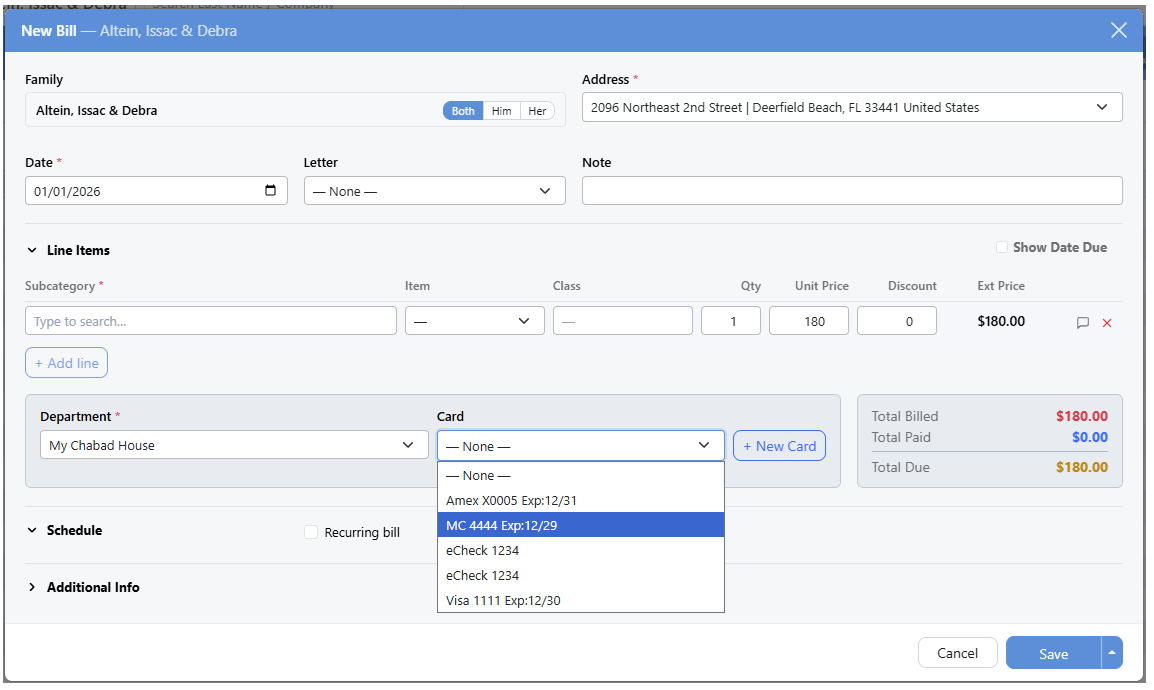
Choosing the card on the bill. The Schedule section underneath is what makes it recurring.
Save. Each payment in the schedule now appears on the Credit Card Charges page as its date comes round.
Families giving month after month are worth watching as a group rather than one bill at a time. That is what
Chai Club is for — it shows who is still giving, who has slipped, and what each family gave over the year.
Once payments have been applied to a bill, its card is locked. Auto-charge would charge the full amount rather than the balance, so unapply the payments first, or write a new bill for what is left.
When the Charges Actually Run
Under Settings → Scheduler → Credit Card are the two settings that decide this: Auto Charge, set to Auto or Manual, and Auto Charge Time, the hour the daily run happens.
Both settings charge the same cards for the same bills. What changes is who starts it — and that changes what the Credit Card Charges page shows you.
| Auto | Manual |
|---|
| Who charges | CMS, at the Auto Charge Time, every day | Nobody, until someone ticks the rows and clicks Charge Cards |
| What the page lists | Only the charges that failed — the successful ones have already gone through and need no attention | Everything due and not yet charged, waiting for you |
| A new bill dated today, with a card | Charged as you save it, without waiting for the daily run | Added to the list for the next time you charge |
Which to choose
Auto is for an office that wants recurring giving to look after itself. Nothing is missed because nobody was in on Tuesday, the money arrives on the day it should, and the only thing that lands on your desk is a decline. It is the right answer for most organizations, and it is what makes a monthly pledge genuinely automatic.
Manual is for an office that wants to look before it charges. Everything due sits on the page until someone reviews it — which matters when donors often call to change or pause an amount, when a bookkeeper wants all the charges to land on one day for a clean deposit, or when a new setup is still being tested and nobody wants a wrong amount to go out unseen.
It is a preference, not a one-time decision. Plenty of organizations run on Manual for the first month or two until they trust what the page is telling them, then switch to Auto and never look back. Switching changes nothing about the bills themselves.
Cards are never charged on Shabbos or Yom Tov. Anything due then is picked up on the next weekday.
What the Donor Can Do
A card marked Available in Portal can be managed by the family themselves in the Members Portal — they can replace an expiring card without calling the office, which is the cheapest way to keep a monthly pledge alive. See Members Portal.
What Happens Next
Everything after setup — what is scheduled, what declined, which cards are expiring, which pledges have finished and need renewing — lives on one page. See the Credit Card Charges page.