The email sent to whoever submits the form. On a donation form it serves as the receipt.
The tab is arranged as a collapsible Details row holding the sender and design settings, and below it the message itself in one of three views.
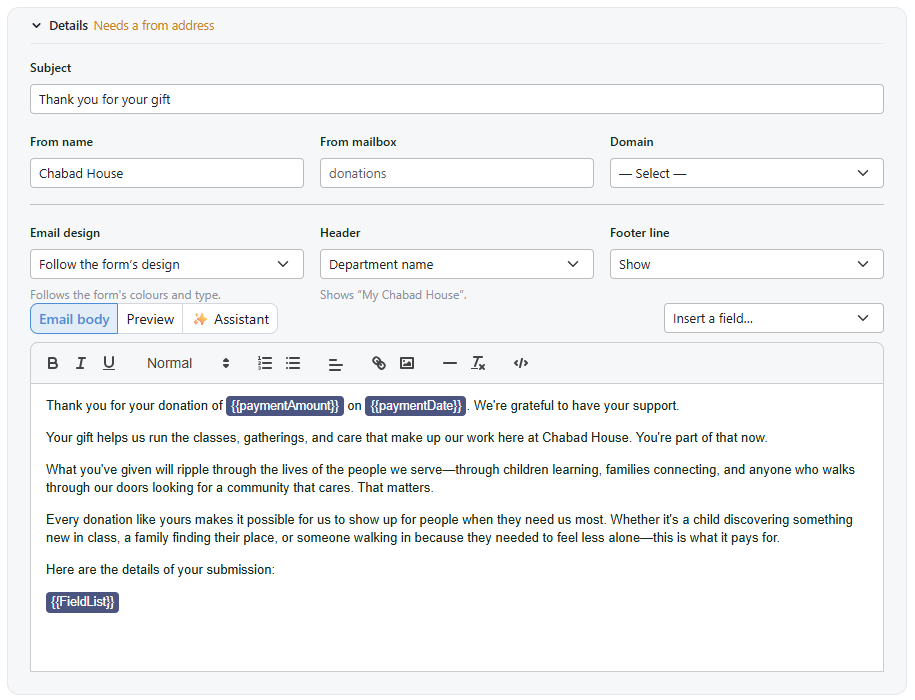
The Email Confirmation tab, with Details expanded.
Details: Sender and Design
Collapsed, the Details row summarizes itself — sender name, address and subject on one line. Expanded, it holds seven settings.
| Setting | Effect |
|---|
| Subject | The subject line |
| From name | The sender name shown in the recipient's inbox |
| From mailbox | The local part of the sending address |
| Domain | The sending domain, chosen from your verified domains |
| Email design | Defaults to Follow the form's design — the email takes the form's colors and type |
| Header | What appears in the header band. Department name shows the department the form belongs to |
| Footer line | Whether the footer line is shown |
Mailbox and domain combine into the sending address, so office and example.com give office@example.com. Replies go to that address.
Email design and Header are dropdowns rather than free text: you choose what the email's frame does, not how it is built. With Email design set to follow the form, changing the form's accent color changes the email — including for messages written before the change, because the design is applied when the email is sent rather than stored with it. The form's design is set as described in The Look of Your Form.
Three Views of the Message
The message area has its own tabs.
Email body is the editor: the same rich text toolbar as the on-screen confirmation message, with bold, italic, underline, headings, lists, alignment, links, images, a horizontal rule and a code view.
Preview renders the finished email with sample data, sending nothing.
✨ Assistant is the wording assistant, described below.
Separately, Send a sample sits in the toolbar at the top of the editor, beside Save. It emails the draft to you with sample data, and is unavailable while the body is empty.
A sample shows what arrives after your mail provider has handled the message, which a preview cannot — including how the subject appears in an inbox list and how the message renders on a phone.
Merge Fields
A merge field is replaced with the submitted value when the email is sent. They are added from the Insert a field… dropdown at the right of the view tabs, and appear in the editor as solid chips rather than raw text — so {{paymentAmount}} reads as a single object you can delete in one go, not as characters to be repaired.
The dropdown lists only what this form collects. A form that doesn't ask for a phone number is not offered the phone field, because a field the form doesn't collect renders as nothing.
Two are always available regardless of the form's contents: {{paymentDate}}, supplied by the submission, and {{FieldList}}.
FieldList
{{FieldList}} expands to a summary of everything submitted, each line labeled with the label or placeholder the donor filled it under, with the amount shown prominently and the remaining values beneath.
Because it describes the submission rather than a fixed list of fields, it keeps including everything if the form's fields change later.
The security code is never included, and the card number appears only as its last four digits.
The Wording Assistant
The message body starts empty. The assistant, on the third view tab, writes it or revises what is already there. It is enabled by the same organization setting as the design assistant but keeps its own conversation: it writes words and does not change the design.
Its suggestions depend on whether there is text yet. With an empty body:
- Write a short confirmation
- Include a summary of what they submitted
- Say the office will be in touch within two days
With text already written:
- Make it shorter
- Warmer, but not gushing
- Add what happens next
- Read it and tell me what is wrong with it
The assistant is told what the form collects, so it knows whether the form takes a payment, offers recurring giving, reserves places, accepts in-honor or in-memory dedications, lets the donor choose a purpose, or collects contact details only. Spoken input is available, and the conversation is kept with the form.
ADVANCEDThe email shell
The outer shell — the header band and surrounding layout — is generated from the form's design and is not editable by hand. The wording, and the Header and Footer line settings, are.