The Settings tab holds three screens, selected from a row of sub-tabs: Where submissions go, After a submission and Embed on your website.
Where Submissions Go
Four settings, laid out in two columns. The two marked with a red asterisk are required and are collected during setup, before the editor opens.
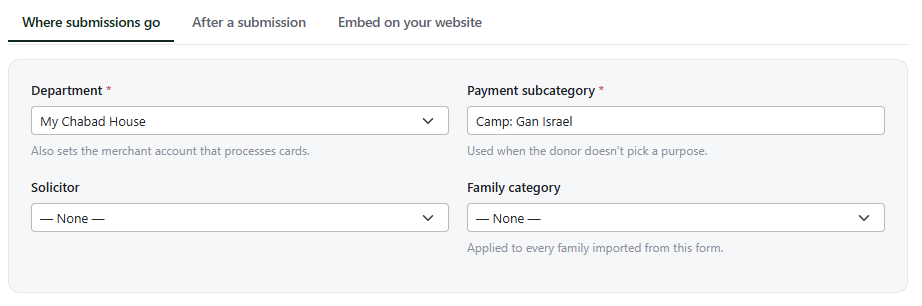
The Where submissions go screen.
| Setting | Effect |
|---|
| Department (required) | The department the submission belongs to. It also sets the merchant account that processes cards |
| Payment subcategory (required) | The subcategory the payment is recorded under. Used when the donor doesn't pick a purpose |
| Solicitor | Credits the gift to a person. Defaults to None |
| Family category | Applied to every family imported from this form. Defaults to None |
Payment subcategory is the fallback rather than an override. Where the form has a Purpose dropdown, the donor's choice wins; this setting applies when they don't choose, or when the dropdown has been removed — see Donations & Reservations.
The subcategory picker is a type-ahead listing active subcategories. A subcategory already set on the form stays selectable even if it has since been retired, so opening an older form does not clear the setting. Where an organization has only one department, it is selected automatically.
The four settings take effect at different points. Department and Payment subcategory are applied when the form is submitted. Solicitor and Family category are applied when a submission is imported into a family, using the form's settings at that moment — so a change also applies to submissions already received but not yet imported.
After a Submission
Three settings control what happens once the visitor presses Submit.
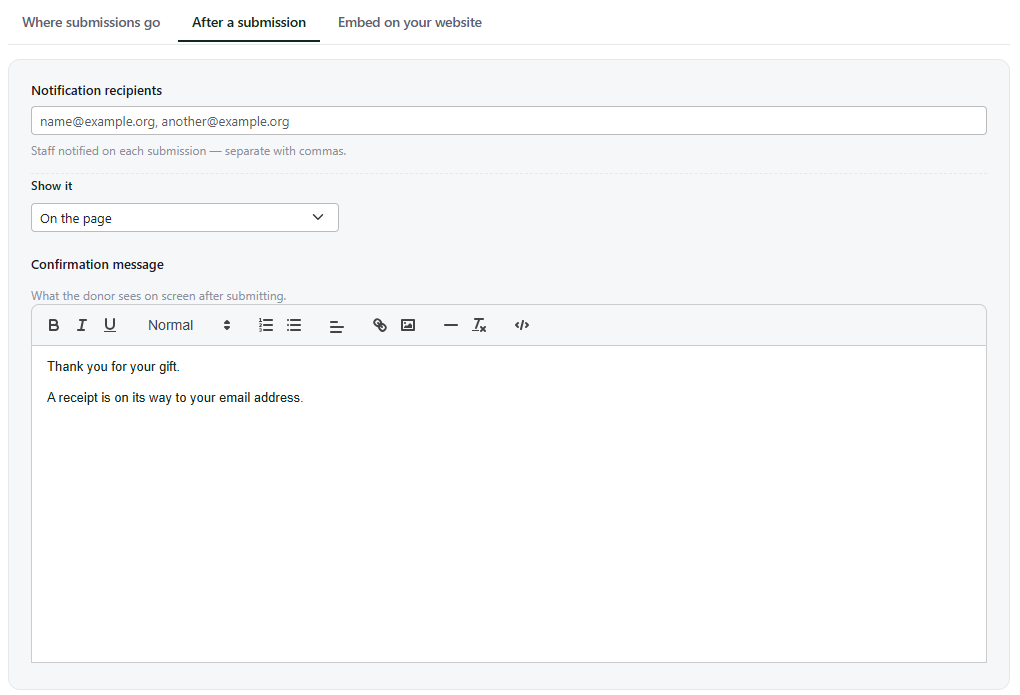
The After a submission screen.
Notification recipients is the list of staff addresses emailed on each submission, separated by commas.
This is the internal alert to your own staff. The email sent to the person who submitted the form is configured on the Email Confirmation tab — see
The Confirmation Email.
Show it selects where the confirmation appears: On the page, which replaces the form in place, or Popup over the form.
Confirmation message is what the visitor reads, written in a rich text editor with bold, italic, underline, headings, lists, alignment, links, images, a horizontal rule and a code view.
Choosing Popup over the form reveals a further setting, When dismissed, go to, which is required in that mode: a popup has to know where the visitor goes when they close it. The field is not shown at all when the message appears on the page.
ADVANCEDA script in the confirmation message
If the confirmation message contains its own script, the Show it setting is ignored and the message is used exactly as written. The screen says so. Removing the script restores the setting.
Embed on Your Website
This screen shows the snippet that places the form on a web page, with a Copy embed code button. The snippet appears only after the form has been saved at least once; before that, the screen says so.
The snippet references the form rather than containing it, so editing and saving the form updates what visitors see without the snippet being replaced. Most website systems accept it in a custom HTML or embed block.
ADVANCEDOther ways to reach the form
The Advanced tab holds API access, for submitting to the form from your own code — see Forms Submissions API — and Custom scripts, which run when the form loads. Neither is required for a standard embed.