A deposit in CMS Cloud is the same thing as a deposit at the bank: a batch of payments, taken to one account, on one day. Recording them here means you can always answer the question that comes up at reconciliation time — which payments made up that $1,278 on the statement?
It is also what the QuickBooks export sends across, so the deposit is the figure your bank, CMS and your books all agree on.
Before You Start
You need at least one bank account. Settings → Financials → Bank accounts is where they live, and Bank Accounts covers the fields.
The Deposits Page
Open Transactions → Deposits from the sidebar. You are always looking at one bank account at a time — the account picker sits at the top left, and the page opens on your primary account.
Prefer to watch? Video: Recording a Bank Deposit runs about two and a half minutes, start to finish.
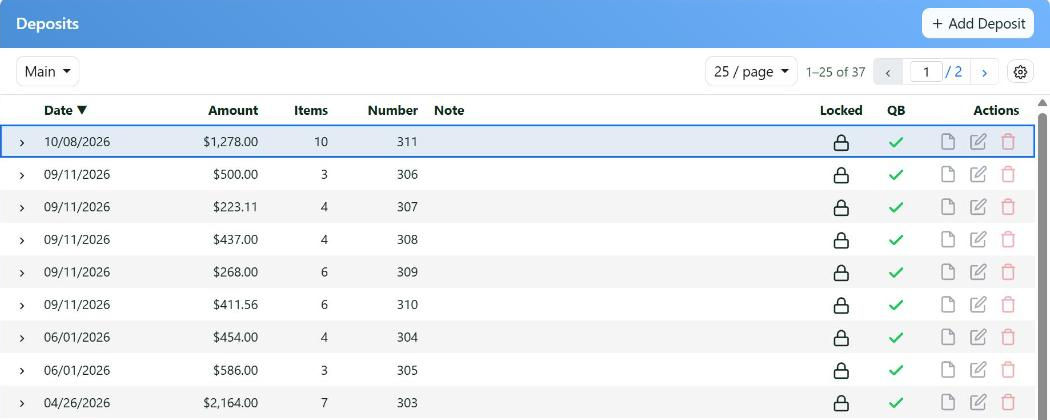
Each row is one deposit. The green check mark in the QB column means it has already gone to QuickBooks.
| Column | What it tells you |
|---|
| Date | The day of the deposit — the date you took it to the bank, not the date the payments came in |
| Amount and Items | The total and how many payments make it up |
| Number | The deposit number, assigned for you if the account is set to auto-number |
| Locked | Whether the deposit is finalized — see below |
| QB | A check mark if it is in QuickBooks already, or the button that sends it |
Click the arrow at the start of a row to see the payments inside that deposit without opening it.
Recording a Deposit
+ Add Deposit opens a window with the account, the date, the number and an optional note at the top, and underneath, every payment that hasn't been deposited yet.
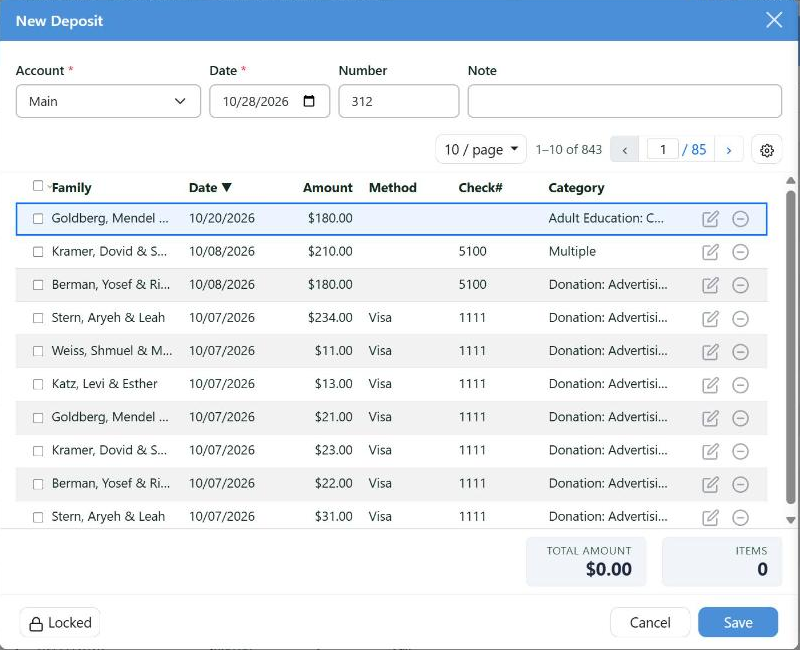
Select the payments going to the bank. The total at the bottom counts as you go, so it can be checked against the slip in your hand.
Select the payments in this deposit and the total amount and items at the bottom keep count. Save records it.
Some things worth knowing about that list:
- It only shows what isn't deposited yet. A payment can belong to one deposit, so once it is in, it stops appearing here.
- Sort and search by date, method or family to find a run of checks quickly.
- If the account belongs to a department, only that department's payments are offered.
- Ignore (the circle at the end of a row) hides a payment you are never going to deposit — a write-off, a correction — so it stops cluttering the list. Ignored payments can be shown again and un-ignored.
Locking a Deposit
Once a deposit matches the bank, lock it. The padlock in the Locked column toggles it, and so does the button at the bottom left of the deposit window.
Locking freezes the amounts of the payments inside it. Anyone who tries to edit one is told the payment is in a finalized deposit and that the deposit has to be unlocked first.
This is the quiet safeguard that keeps your books straight. Without it, somebody correcting a typo on a payment from three weeks ago changes a deposit total that has already been reconciled — and nothing tells you.
The Deposit Slip and Report
The document icon on a row offers two PDFs:
- Deposit Slip — the list to take to the bank, with the account number.
- Deposit Report — the fuller breakdown of what is in the deposit, for your own records.
Sending It to QuickBooks
If you use QuickBooks Online, the QB column on each undeposited row sends that deposit across in one click, and a check mark appears once it is there. The whole arrangement — connecting a company, matching your families and subcategories — is in Quickbooks Integration.
Changing or Removing One
The pencil reopens a deposit so you can add or remove payments; the trash icon deletes it. Deleting a deposit does not delete the payments — they simply go back to being undeposited and show up again next time you record one.
Filters & Columns at the top narrows the list by date and chooses which columns you want to see.