Everything that classifies or processes money is set up here: what you can file a donation under, which bank account a deposit goes to, which gateway charges a card, how receipts are numbered.
Settings → Financials. It opens on Departments; the rest appear in the rail underneath.
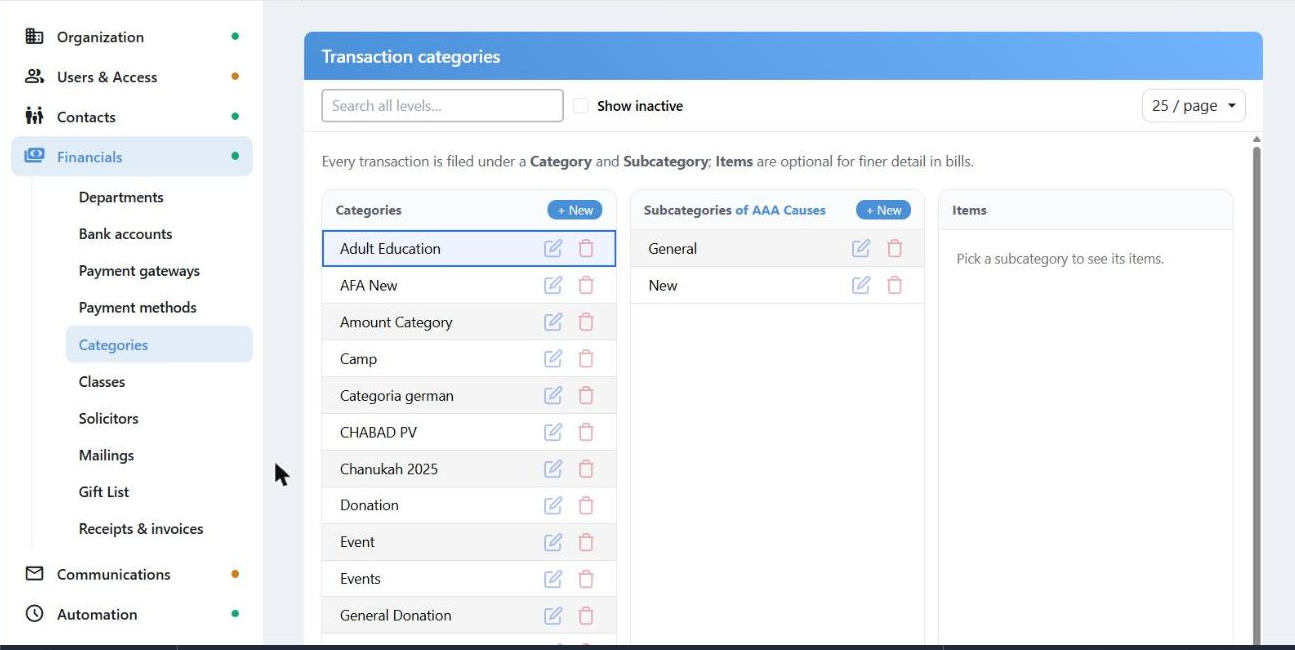
Categories, subcategories and items, side by side. Pick on the left to fill the column on the right.
Categories, Subcategories and Items
The backbone of your reporting. Every transaction is filed under a Category and a Subcategory; Items are optional and only used for finer detail on bills.
Three columns, each with its own + New. Pick a category to see its subcategories, pick a subcategory to see its items. Search all levels looks through all three at once and jumps you to the first match.
Beyond a name and Active, each level carries defaults that save typing later:
| Level | Defaults you can set |
|---|
| Category | Default department, default letter, and whether it counts as a receipt category. |
| Subcategory | Default letter — so a Building Fund gift picks its own thank-you automatically. |
| Item | Default amount, used when the item is added to a bill. |
Nothing is ever really deleted while it is in use. Delete checks first, and if the category is on a transaction it tells you so and leaves it alone. Clear Active instead — it disappears from the dropdowns and the history stays intact.
Departments
A department is "who the money is for". It carries the address and logo printed on receipts, the gateway its cards are charged through, and its own receipt template. Organizations with one entity have one department; a shul with a separate school usually has two.
One department is the Primary; making another primary takes it off the first. Under More info you will find the payment gateway, receipt template, QuickBooks company and the return-address image.
The gateway is locked once saved cards exist on it: "Locked — saved cards use this gateway. Contact support to change it." That protects cards your families already have on file.
Bank Accounts
The accounts you deposit into. Each has a name, bank, account number and the department it belongs to, and one is the primary.
Auto-number deposits / checks makes CMS number each new deposit for you, starting from the Next number you give it. Closed accounts are hidden when recording a deposit rather than deleted, so old deposits keep their account.
Payment Gateways and Payment Methods
These two sound alike and do different things.
A payment gateway is the real merchant account that charges cards — Payrix or Authorize.Net. You cannot add one here: gateways are set up by the support team, and Add gateway opens a support ticket for you. What you can change is the name CMS shows it under, and an internal note.
A payment method is how a particular payment arrived, and you manage these yourself. Each has a type:
| Type | Means |
|---|
| Check | A paper check. |
| Credit | Credit or debit card. |
| eCheck | Electronic check / ACH. |
| Cash, In Kind, Stock, Other | Cash; goods or services; securities; anything else. |
That is how you add "Zelle" or "Venmo" as a method of type Other, and have it show up in the method dropdown when entering a payment.
The Rest of the Group
- Classes — an optional second layer across categories, for a second way of slicing your reports.
- Solicitors — who brought the gift in.
- Mailings — which appeal a gift came from.
- Gift List — the appreciation gifts you hand out.
- Receipts & invoices — the numbering and the invoice options.
All of them behave the same way: a search box, Show inactive, and Edit and Delete on each row, with Delete refusing when the record is in use.