This is how you pay CMS Cloud — your subscription, or a past-due balance — by credit card, from inside CMS.
This is not for charging a donor. It charges your organization's own card and the money goes to CMS Cloud. Nothing is written to your families, transactions, deposits or reports. To record money a family gave you, use the family's Transactions tab.
Opening It
Click your name in the top right, then Make a Payment.
If your account is past due, a red bar sits across the top of every page with the amount owed and a link that says Click here to submit payment. That link opens the same page with the amount already filled in.
Paying needs the Credit Cards – Edit permission. Without it you see "Please ask your administrator to submit this payment." instead of the form, and the red bar shows no link.
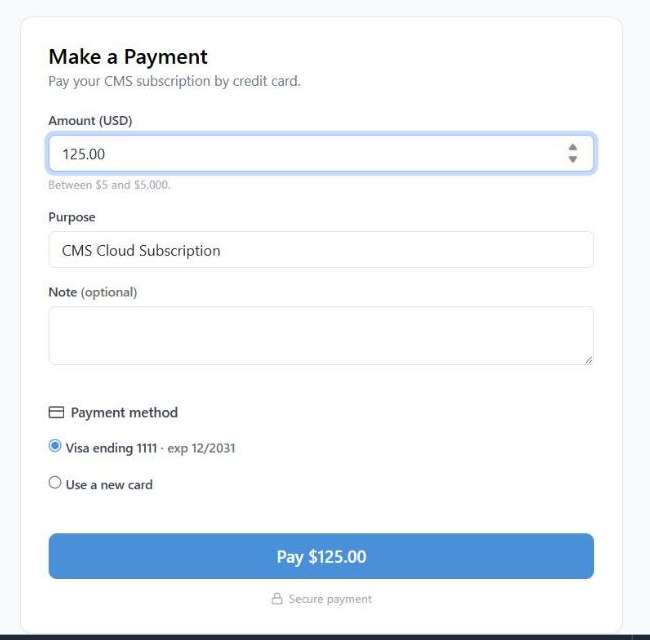
The whole form. The button always shows the amount you are about to charge.
Filling It In
- Amount (USD) — anything from $5 to $5,000, cents allowed.
- Purpose — usually CMS Cloud Subscription. There is also CMS Desktop Subscription and Other.
- Note — optional, except when the purpose is Other, where it becomes required. Whatever you write appears on the receipt and on our record of the payment, so it is worth being specific.
- Pick a card, then click Pay.
Which Card
Cards you have used before are listed as "Visa ending 1111 · exp 12/2031", newest first, with the newest already selected. These are your organization's own cards on file with CMS Cloud — the same ones under Settings → Account balance & cards. They are not donor or member cards.
Choose Use a new card to enter a different one. Visa, Mastercard, Amex and Discover are accepted. Your name is filled in for you, and the billing address is pre-filled from your organization's main department address; the address fields are optional.
A new card is added to your organization's cards even if the charge is declined, so you don't have to type it again. It does not become the default card for your prepaid balance.
After You Pay
The page turns into a receipt: amount, purpose, the card's last four digits, and a confirmation number. A receipt email goes to whoever is signed in, with the same details. If that email fails for any reason, the payment still went through — the confirmation number on screen is your proof.
Make another payment clears the form and starts again. A card you just used is now in the saved list.
The red past-due bar does not vanish the moment you pay. Once we have applied the payment, sign out and back in and it clears.
If It Doesn't Go Through
| What you see | What to do |
|---|
| "The payment was not approved. Please try a different card." | The bank declined it. Try another saved card, or enter a different one. |
| "Selected card was not found." | The card was removed while the page was open — usually from Settings. Reload and pick again. |
| "No payment method specified." | No saved card is selected and no new card has been typed in. |
| "Payments aren't fully set up yet. Please contact support before trying again." | Something is incomplete on our side. Nothing was charged — contact CMS support. |
| "Enter an amount between $5 and $5,000." | For anything outside that range, contact the office. |
Clicking Pay twice does not charge you twice. There are no recurring or scheduled payments from this page — each click is one payment.