The same household ends up in CMS twice more often than anyone would like — a form submission that didn't match, a second entry made by a volunteer, a maiden name. Find Duplicates hunts those pairs down and merges them into one family, keeping the giving history of both.
Tools → Find duplicates in the sidebar. Only organization administrators see it.
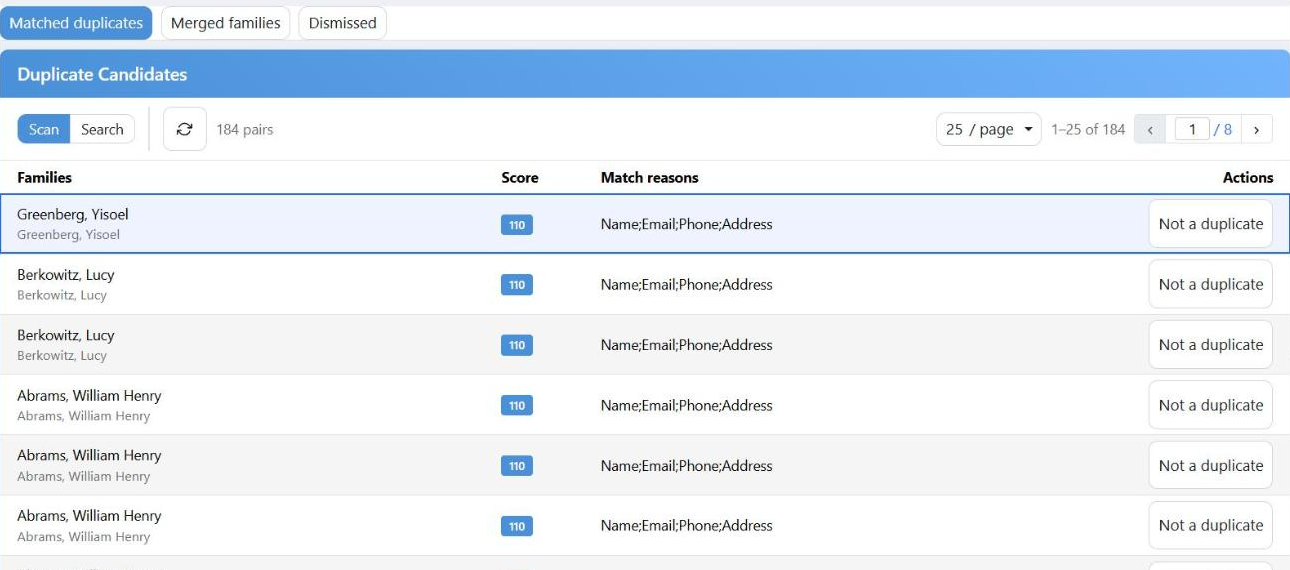
Candidate pairs, strongest match first. Each row is two families CMS thinks are one.
What Counts as a Candidate
Two families are only paired up when both of these are true:
- Their main people have the same last name — exactly, ignoring capitals.
- They also share at least one of: an email, a phone (the last seven digits), or the same house number and street on the primary address.
A shared surname on its own is never enough, which is why a list of three hundred Cohens doesn't turn into three hundred suspected duplicates.
The Score adds up the reasons — name, email, phone, address — and sorts the list. It never hides anything: a low score still appears, just further down.
Just added or fixed a family? Click Refresh to rebuild the match data before you scan, or the change won't be taken into account.
The Three Tabs
| Tab | What's in it |
|---|
| Matched duplicates | Pairs waiting for a decision. Search narrows them to one family. |
| Merged families | A read-only history of what you have merged, newest first. |
| Dismissed | Pairs you said were not duplicates. Restore to Matched puts one back; Merge now goes ahead after all. |
Not a duplicate on a row sends the pair to Dismissed. Nothing is deleted and you can always bring it back — useful for two brothers at the same address.
Merging a Pair
Click a row to open the merge. There are four steps, all on one page.
1. Which way round
The top says Merging from (will be emptied) and Merging into (survivor). CMS opens with the older record as the one being emptied. Swap reverses it — worth doing when the newer record is the messier one.
2. What moves
One card per kind of record the emptied family actually has, each with a switch:
| Record | Default |
|---|
| Transactions, Categories, Gifts, Notes, Sent, Submissions, Addresses | On |
| Credit Cards | Off — and turning it on needs a separate confirmation |
| Members | Always move. There is no switch. |
If transactions move but saved cards don't, any upcoming recurring bill loses the card it was going to be charged on and won't be charged. CMS lists exactly which bills those are before you go ahead. Read that list.
3. Pairing up the people
Each person in the emptied family gets a dropdown: pick the matching person in the surviving family, or none (add as new member). Pairing merges two records into one person; leaving it as none moves them in as an extra member.
CMS flags what looks wrong as you go — "Gender differs", "Also in another family", "This member is already paired above".
4. Review and merge
A plain summary of everything that is about to happen. Also delete the emptied family we merged from is off by default; check it to clear the shell away permanently.
When it is done you get a count of what moved and, in most cases, an Undo merge button that puts both families back as they were. Very large merges can't be undone automatically, and CMS says so on the spot.
Things Worth Knowing
- Addresses are not de-duplicated. If both families have the same address, you end up with both copies and one of them marked primary. Tidy that up afterwards.
- Phones and emails the survivor already has are not copied again.
- The family name is recalculated after every merge from whoever is now head and spouse.
- If a family has Members Portal items waiting — changes to review or payments to check — CMS stops and asks you to clear those first.