The Calendar shows your follow-ups by date. Every note you set a follow-up date on — call this family, visit the hospital, chase an unpaid bill — lands here, so your week is one page instead of a scattering of notes across families.
In the sidebar, Calendar. It appears when the Notes module is on and you have permission to read notes.
Prefer to watch? Video: The Calendar and Follow-Ups runs about two minutes, start to finish.
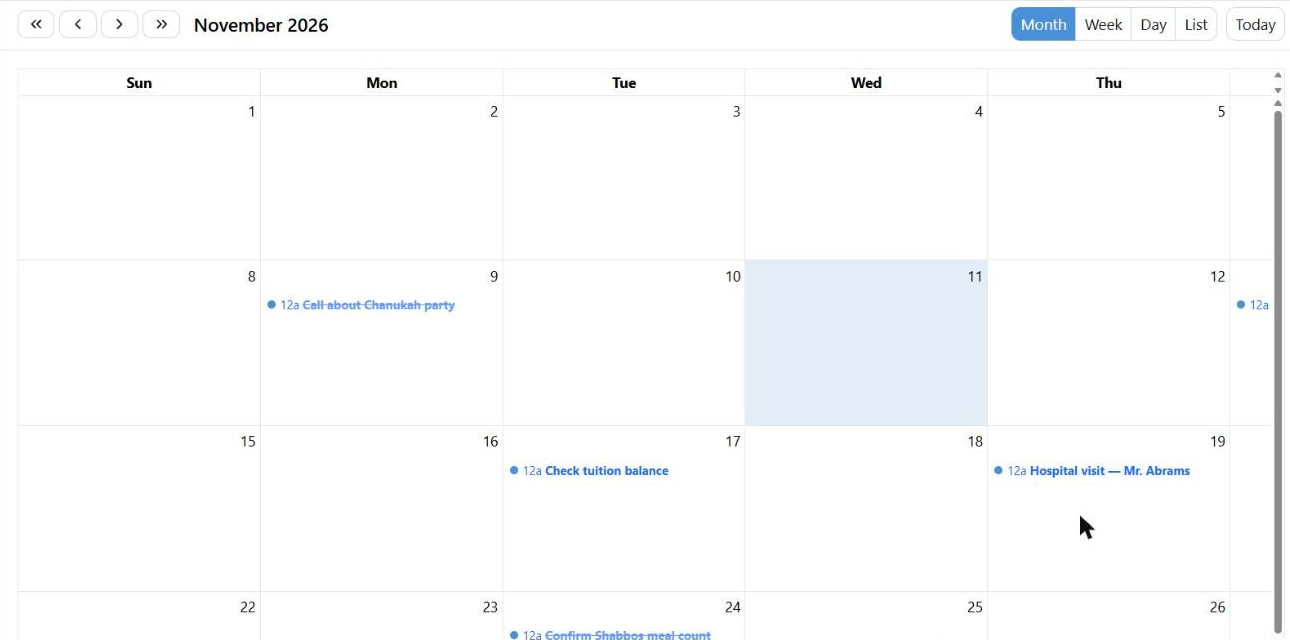
Month view. The struck-through ones are done; the rest are still waiting.
Follow-ups are not created here. You add a note on a family or a member, check Follow-up and give it a date — and it appears on this calendar.
The Four Views
| View | Best for |
|---|
| Month | The default on a computer. The shape of the month at a glance. |
| Week | Time slots, with a line showing the current time. |
| Day | One day in detail. |
| List | Every follow-up in the year, one after another. The default on a phone. |
The arrows move one period at a time; the double arrows jump a whole year. Today brings you back. The view you pick isn't remembered — it opens on Month each time.
Reading the Calendar
Each entry is the note's subject, sitting on its follow-up date and time exactly as you typed it. A follow-up with no time shows at 12:00 AM in Week and Day views.
Hover over one for a preview with the family's name and the body of the note. Completed follow-ups stay on the calendar, struck through and faded, so you can see what you have cleared as well as what is left.
Working Through Your Follow-ups
Click an entry to open the note (you need permission to edit notes; without it, clicking does nothing). From there you can:
- Check Complete — it stays visible, struck through.
- Change the Follow-up Date to push it to another day.
- Turn Follow-up off entirely, which takes it off your calendar and leaves an ordinary note behind.
- Edit the subject and the body.
The family or member name at the top is a link, not a field — a follow-up can't be moved to a different family here. Clicking it closes the editor without saving and takes you to that family's Notes tab.
Clearing the Follow-up Date marks the note Complete automatically. There is no Delete in this editor — delete a note from the family's Notes tab.
Whose Follow-ups You See
Your own follow-ups, plus any a colleague marked Broadcast to everyone. Another user's ordinary follow-ups never appear on your calendar — not even for an administrator, and there is no way to look at someone else's. A private note shows only on its author's calendar.
A broadcast follow-up gives everyone their own copy. Completing it, or moving it to another day, changes only your calendar; the subject, type and note text stay shared.
Dates and times are your organization's wall-clock time, stored exactly as typed — a follow-up set for 9:00 AM reads 9:00 AM for everybody, wherever they are.