Families groups people into households. Members does the opposite: every individual person in your database on one list — parents, children, grandparents — so you can find a person when you don't know, or don't care, which family they belong to.
In the sidebar, Members, directly under Families.
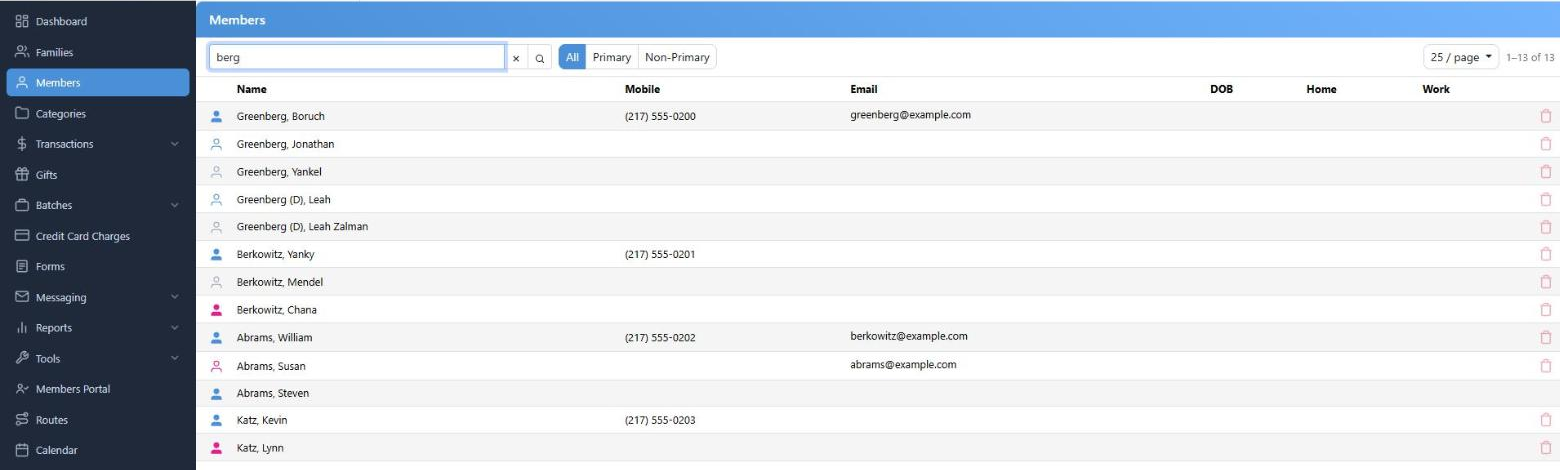
Searching for "berg". The icon at the start of each row is filled in for a family primary.
Searching
The search box matches text anywhere in a person's first name, last name, or their own primary phone or email. Press Enter or click the magnifier.
It is worth knowing what it does not search, because this is where people get stuck:
- addresses
- the family name as filed
- phone numbers and emails that belong to the family rather than the person
- Hebrew names
- notes
- any phone or email not marked Primary
If you are hunting by address or by a shared household number, use the Families list instead.
All, Primary and Non-Primary
These three buttons are narrower than they look:
| Button | Who you get |
|---|
| All | Everybody. The default. |
| Primary | Only a husband or wife who is the sole member of their family. |
| Non-Primary | Everyone else — including husbands and wives in any family that has other members. |
So a married couple with children appears under Non-Primary, not Primary. Think of Primary as "people who are a household on their own".
Reading the List
Sorted by last name, A–Z, and the columns don't sort. The name opens that person's member page. Phone numbers are tap-to-call and emails open your mail app.
The contact details shown are the person's own primary ones. A family's shared home number won't appear here, even if that is the only way to reach them — look at the family page for that.
The list includes people in inactive families and members marked deceased; there is no filter to hide either. Members of private families are hidden from anyone without permission to see them.
Adding and Deleting People
You cannot add someone here — a person has to belong to a family, so they are added from the family's page with + Add Member.
The trash icon deletes a member, with the Contacts – Delete permission. It is hidden for anyone who is the only member of their family. If the person is the last primary in a family that still has other members, CMS refuses: "The last primary member in a family cannot be deleted." Promote somebody else first, or delete the whole family from the Families list.