The Families list is your directory of households — one row per family, with the couple's photos, mobile, email and primary address. It is the first thing under Dashboard in the sidebar, and the fastest way into any family record.
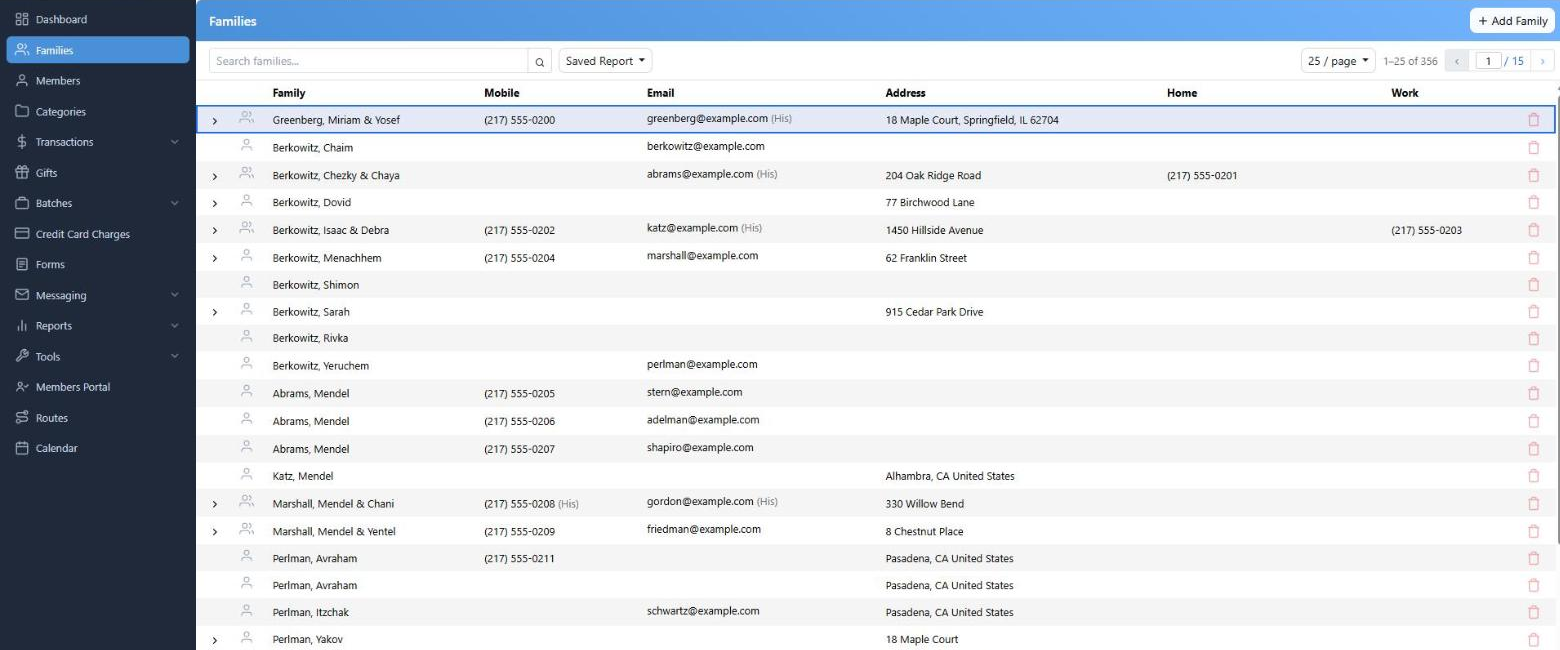
One row per household. The chevron on the left opens the row for the second spouse's details.
Finding a Family
Type in Search families... and press Enter. Unlike most searches in CMS, this one matches any part of what it looks at, not just the beginning — and it looks at a lot:
- the family name, as filed ("Klein, Dovid & Rivka")
- the street line of the primary address
- the family's home, work and mobile numbers, and its email
So a street name, a phone number or half a surname all work. Only the first 20 characters you type are used.
The list is always sorted by family name, A–Z. The column headers aren't clickable — to sort or group families any other way, build a Contact report.
Narrowing With a Saved Report
The Saved Report dropdown lets you cut the list down to the families in one of your saved Contact reports — board members, Hebrew school parents, everyone in a category. Pick one and the list shows only those families; the button then carries the report's name, and Clear filter puts it back.
A report only appears in this dropdown if it has Use for Filter turned on in the report builder. The choice isn't remembered once you leave the page.
Reading a Row
Only the primary address is shown. Click it to open it in Google Maps. Where an address has no street line, the city, state and ZIP show instead.
When both spouses have a mobile, email or work number, the list shows his with (His) after it. Click anywhere on the row (except a link) to expand it — her values appear marked (Her), along with the city line under the address.
Both active and inactive families are listed. Private families are only visible to users who have permission to see them.
Adding a Family
+ Add Family opens the New Family window, where you enter both primaries, their basic contact details and the first address in one go. It is covered in its own article.
Deleting a Family
The trash icon at the end of a row. CMS checks before it does anything:
| Situation | What happens |
|---|
| The family has any payment or bill | "This family has transactions and cannot be deleted. Please delete the transactions first." Nothing is removed. |
| The family has notes | You are warned that notes exist before you confirm. |
| Neither | A plain confirmation, then the family is gone. |
Deleting needs the Contacts – Delete permission, and it cannot be undone. If a family has simply stopped being involved, clear the Active box on their family page instead — they keep their history and drop out of default lists and bulk sends.
Where You Left Off
CMS remembers your page, your page size and what you searched for, so coming back to Families puts you where you were rather than at the top of the alphabet.