A bill is money owed: tuition, membership, a dinner reservation, a commitment to give. Open the family, go to the Transactions tab, and click + Bill. It gets an invoice number, it shows up as Due until it is paid, and it can be printed or emailed as an invoice.
Money received is a payment, covered in Recording a Payment. Both are added from a family's own Transactions tab; the organization-wide Transactions page is for looking, not entering.
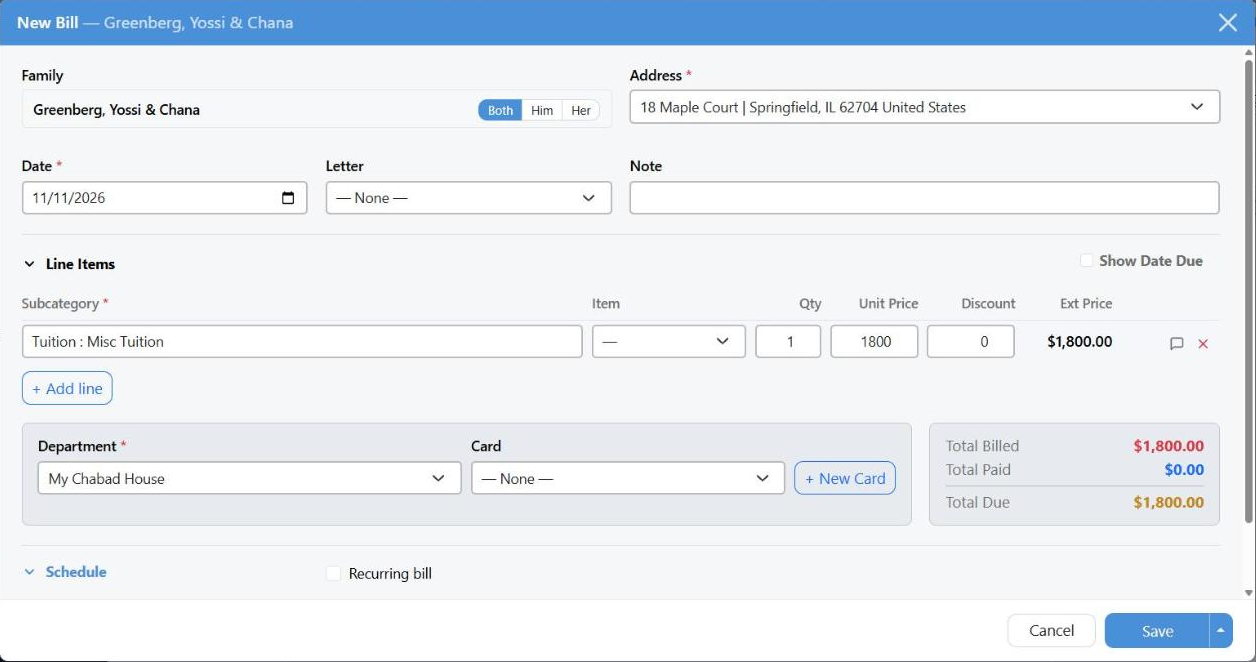
A $1,800 tuition bill. The totals on the right update as you type.
The Top Row
Family, Address, Date and a Letter — which invoice letter is used when you send it. There is a Note field as well, which prints on the invoice.
Line Items
A bill is built from line items rather than a single amount, which is what lets one invoice carry three children's tuition on separate lines:
- Subcategory — what the charge is for. Required on every line.
- Item — optional, for a named thing within the subcategory.
- Qty and Unit Price — multiplied into Ext Price.
- Discount — comes off that line.
Show Date Due adds a Due Date column, so each line can fall due on its own day — an invoice paid in stages. The panel on the right keeps a running Total Billed, Total Paid and Total Due.
Department and Card
Department is required — it is the bookkeeping bucket the money belongs to, whatever way it is eventually paid.
Card is next to it when credit card processing is turned on. Choosing a saved card here is what lets CMS charge the bill instead of waiting for a check. Leave it on — None — and the bill is simply an invoice. Getting a card on file in the first place is covered in Credit Cards & Recurring Giving.
Once payments have been applied to a bill its card is locked, because an auto-charge would take the full amount rather than the balance. Unapply the payments first, or write a new bill for what is left.
A Bill That Repeats
A recurring bill runs on a credit card. Nothing about the schedule is a reminder system: CMS charges the saved card, and only when that charge goes through does it create the next bill in the series. No card means nothing is charged and nothing rolls forward — you would be left with a single bill sitting there. Set the schedule and the Card together, or don't set the schedule at all.
Open Schedule and check Recurring bill:
| Setting | What it does |
|---|
| Period | Weekly, Monthly, Quarterly or Yearly. |
| # Payments | How many times it repeats — ten monthly tuition payments. Enter the amount of one payment, not the year's total. |
| Perpetual | No end at all. The Transactions list shows ∞ instead of a count. |
| Last Payment | Read-only. CMS works it out from the date, the period and # Payments, and stops creating bills once it is passed. |
So at any moment there is one open bill, not ten. Each charge that succeeds creates the next one, dated a period later, with the same lines, department, card and letter, and a note reading "Recurring — created from Invoice #…" so you can trace the chain back.
The Schedule section only appears when credit card processing is on, and Recurring bill can only be checked when every line shares the same due date. CMS tells you which of the two is in the way.
When the charges actually run — automatically, or only after you review them — is set under Settings → Automation → Credit Card, and the charges themselves are worked from the Credit Card Charges page.
Installments Without a Card
A family paying tuition monthly by check doesn't need a card, and shouldn't be given a recurring bill. Use Create Multiple Line Items instead: fill the schedule in as above, and CMS saves one bill with that many dated lines on it rather than a repeating charge.
It appears under the two checkboxes on a new bill once the schedule is a plain count — a period, between 2 and 12 payments, not perpetual — and the bill has a single complete line. Turning it on also turns on Show Date Due, so you can see the dates it is about to write.
The result is an ordinary bill: one invoice, twelve dated lines, each one showing as due on its own day. Payments get applied against it as they come in.
Changing or Removing One
Every bill row on the Transactions tab has Edit and Delete. After you save, the tab switches to the Bills list and highlights the row so you can see what landed.
Deleting is permanent and takes the line items with it. "This will permanently delete the bill and all its line items. This cannot be undone." If a bill was entered on the wrong family, move it rather than deleting it — the invoice number survives a move.
Lines that have already been charged are locked on an open bill: their subcategory, quantity, unit price and discount can't be edited and the line can't be deleted, so a charged month can't be rewritten after the fact.