Every person in CMS has their own page. The family page holds what the household shares — addresses, transactions, cards. The member page holds what belongs to the person: their own phone and email, their categories, who they are related to, the yahrtzeits they observe, and notes about them.
Open it by clicking a name anywhere — in the Members list, in the Family Members table on a family page, or in a report.
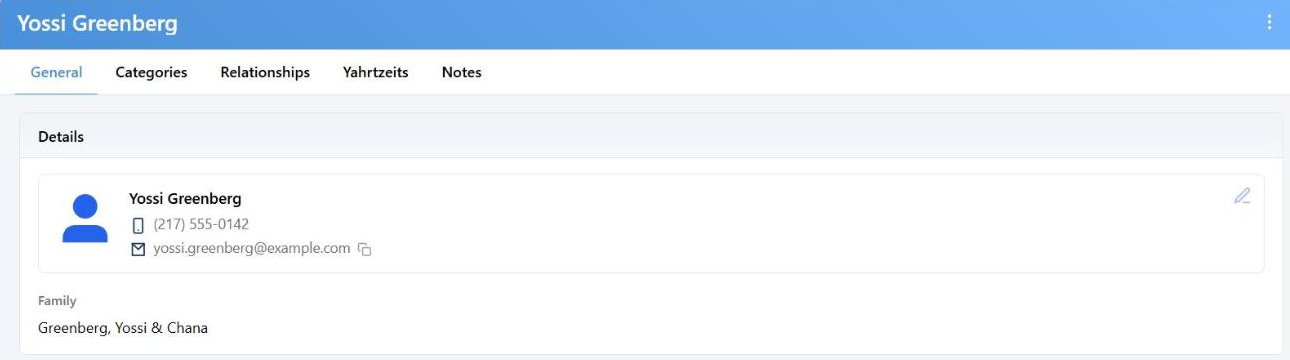
The General tab. The numbers on the tabs tell you where there is something to see.
The Tabs
| Tab | What's on it |
|---|
| General | Photo, name, birthday in both calendars, their own contact methods, their family, their note. |
| Categories | Member categories this person is in. The badge counts them, expired ones included. |
| Relationships | Living relatives. The badge counts them. |
| Yahrtzeits | Deceased relatives whose yahrtzeit this person observes. |
| Notes | Notes attached to this person rather than to the family. |
On a phone the tabs collapse into a dropdown. On every tab except General, a small box beside the name shows their best contact; click it for their birthday and every number and address on file.
Editing a Person
The pencil on the Details card, or Edit member in the ⋮ menu. Needs the Contacts – Edit permission.
Names and dates
Title, first and last name, date of birth, and Born after sunset, which shifts the Hebrew birthday to the next day. The Hebrew date is worked out for you and can't be typed. Hebrew name, father's name and mother's name sit under Hebrew names.
Contact methods
Each row is a type (Mobile, Email, Work, Other, Emergency), the value, and its flags:
- Primary — one per type. This is the one that shows in lists and gets used by default.
- No Send — keep out of outreach: calls, bulk emails.
- No Trans — primaries only; keep out of receipts and statements.
- No SMS — you can't set this. It appears on a mobile when the person has texted STOP, and clears when they text START.
Ten-digit phone numbers are formatted for you; international numbers are left exactly as typed. Old Home, Pager and Fax rows show as "(retired)" and can be switched to a current type.
Marking Someone Deceased
Check Deceased in the edit window and you are offered the yahrtzeit details. The General tab then shows the date of passing, the Hebrew date and the next yahrtzeit, and a Deceased chip appears next to the name.
Unticking Deceased for someone who was marked deceased deletes their yahrtzeit details when you save. CMS warns you first.
Advanced: Changing Someone's Place in the Family
At the bottom of the edit window, for living members who have been saved:
| Action | What it does |
|---|
| Make primary / Make non-primary | Promotes a child or relative to head of the household, or steps a primary back. The matching slot — his or hers — has to be free. |
| Switch to Her / Switch to Him | Flips a primary to the other slot. Blocked when that slot is taken. |
| Move to own family | Takes the person out of this family and makes a new household with them at its head — a child who marries or moves out. |
These are queued, not instant: a Pending change badge appears and the change happens when you save. Promoting someone or moving them out needs their Gender set first.
The Google Icon
If you have connected your own Google account under Settings, a small Google icon sits next to the name on the Details card. It tells you whether this person is in your Google contacts — In Google, Not in Google, or mid-change — and why, when your sync filter leaves them out.
Click it to add them, remove them, or go back to following your filter. Changes reach Google within a few minutes. Deceased members are never synced.
A member with no photo in CMS can also borrow the photo from your Google contacts, when that option is on. The small refresh button in the corner of the photo fetches Google's latest.