Every payment and every bill in the organization, in one list you can search, filter and total. It answers the questions that come up all day: what did this family give last year, how much came in for the building fund, which pledges are still open.
In the sidebar, Transactions → Transactions.
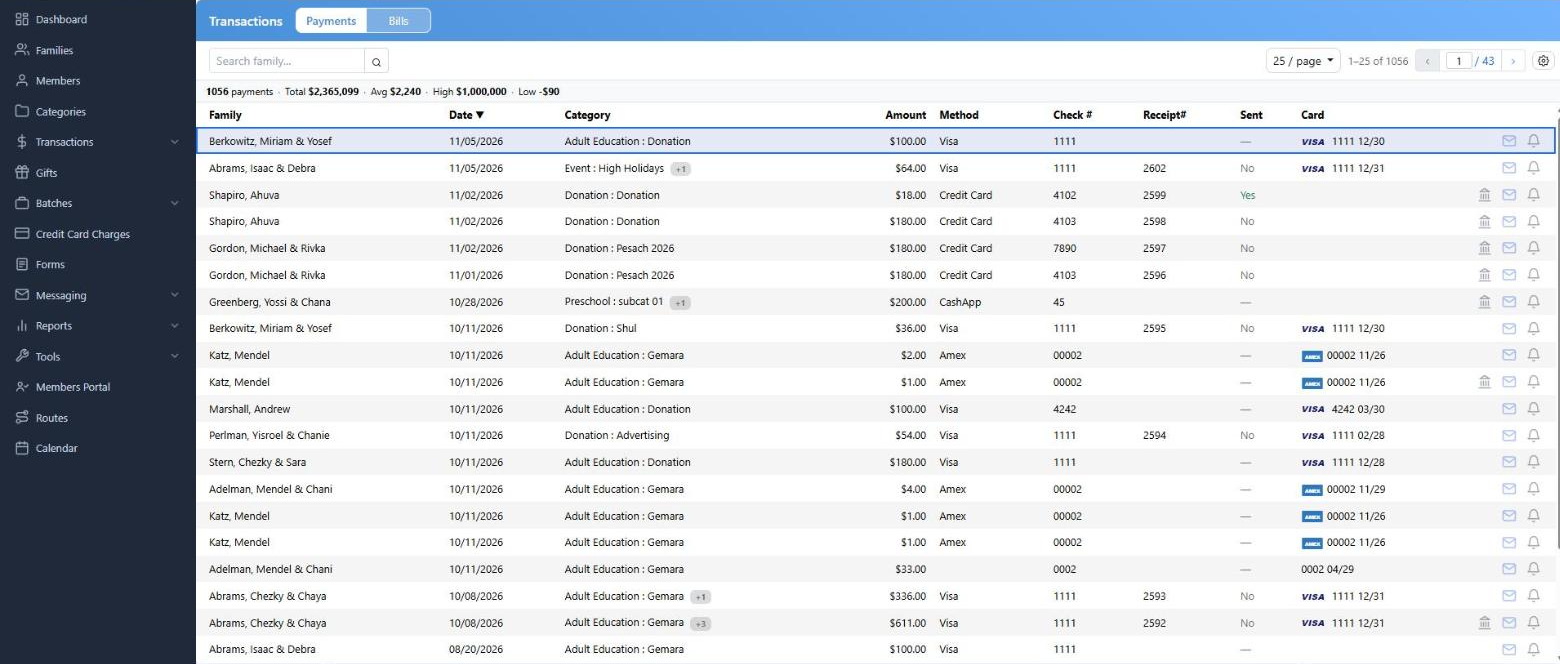
Payments, newest first. The line above the table totals everything the filters match, not just this page.
Two Lists, Not One
Payments is money received. Bills is money owed — pledges and invoices. The toggle at the top switches between them, and they are genuinely separate: each keeps its own sort, its own filters, its own columns and its own page size. Filtering the payments list to last year does nothing to the bills list.
CMS remembers which one you were on and brings you back to it.
| Payments show | Bills show |
|---|
| Method, Check #, Receipt#, Sent, Auth#, Card | Paid, Due, Invoice#, Recurring, Perpetual |
| Sent: Yes = the thank-you went out. No = it hasn't. — = the payment isn't marked as a receipt, so nothing is expected. | Perpetual: ∞ for a recurring bill with no end date, otherwise how many payments are left. |
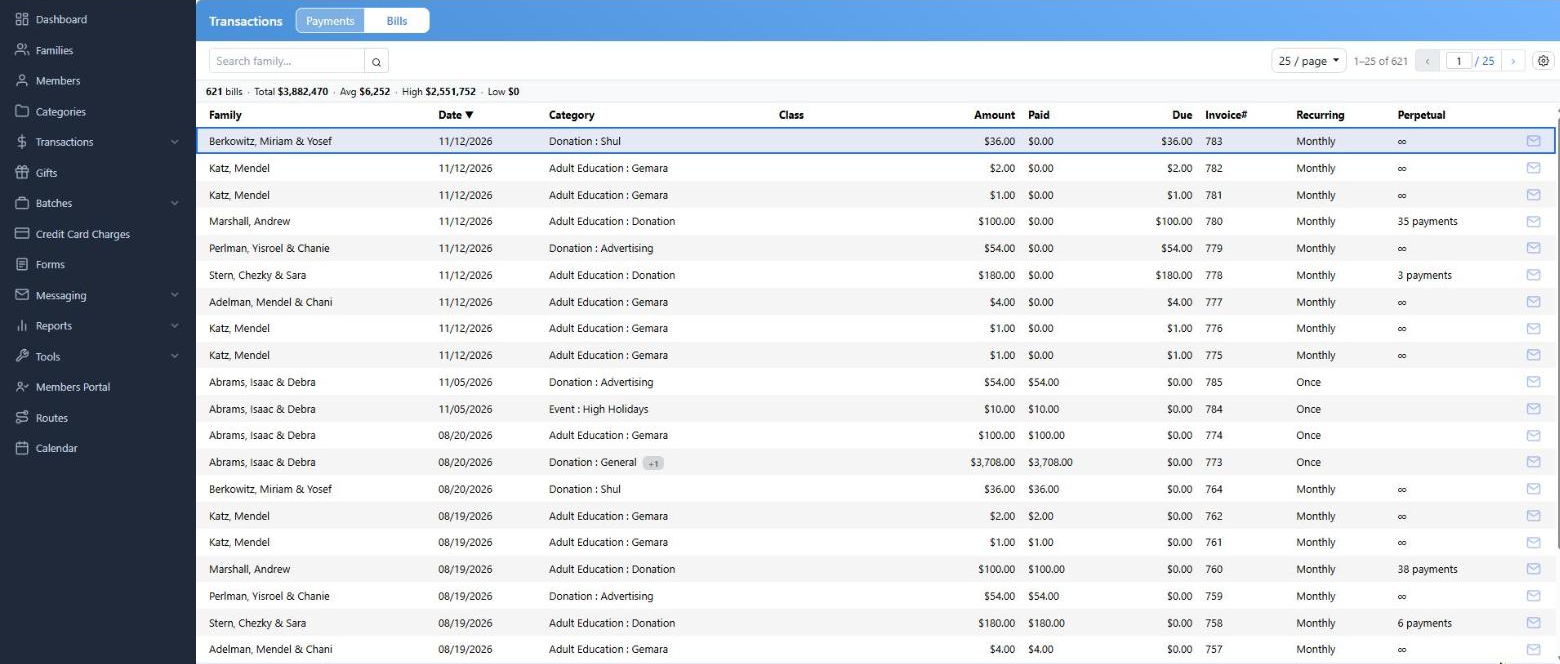
Bills. Paid and Due tell you at a glance what is still outstanding.
The Totals Line
Above the table: how many transactions, and their Total, Avg, High and Low. These cover everything the filters match, across every page — not the twenty-five rows you happen to be looking at. Narrow the filters and the totals follow.
Finding What You Need
One family
Type a last name in Search family... and press Enter. It matches the beginning of the filed-as name (Last, First) or of a company name on the address, so "gold" finds Goldberg and Goldstein, but a first name on its own won't find anything.
To work inside one family — adding, editing or deleting — open the family and use its Transactions tab instead. This page is for looking across the whole organization.
Everything else
Filters & Columns opens a panel on the right. The badge on the button tells you how many filters are currently on.
| Filter | What it does |
|---|
| Date | Presets (This Month, Last Year, All Time and so on) or your own From / To. Both days are included. |
| Amount | Min and Max, both included. |
| Category | The category tree. Check a category to take all of it, or check individual subcategories. A split transaction matches if any of its lines matches. |
| Payment Method, Solicitor, Mailing, Department, Letter | Pick as many as you like from the active ones. |
| Receipt #, Check #, Invoice # | Exact match. Receipt # and Check # on payments, Invoice # on bills. |
| Receipt, Sent | Payments only. All / Receipt / No Receipt, and All / Sent / Not Sent. |
Choices inside one filter are "any of these"; different filters are "all of these". Picking three categories and a date range gives you those three categories within those dates.
Nothing happens until you click Apply. Each filter then appears as a chip above the table, and the x on a chip drops just that one. Clear All shows up once two or more are on; it leaves the family search alone.
Columns
The Columns tab of the same panel turns columns on and off. The choice saves immediately and is yours alone — it doesn't change what anyone else sees. Date and Amount always stay. On a narrow screen the wider columns hide themselves.
Split Transactions
A payment divided across several categories shows the first one with a +2 badge next to it. Click the badge to open the lines — each with its own category, class and amount — and click again to close them.
What You Can Do From a Row
- Send Thank You Email (payments) or Send Invoice Email (bills) — opens the letter editor.
- Notify — tells the family a gift was given in their honor or memory.
- Open deposit — for a payment that has been deposited, jumps to that deposit.
- The family name is a link to the family.
On a phone these sit behind the ⋮ menu at the end of the row.
Sending a Thank You or an Invoice
The editor opens with a template already chosen: the letter saved on the transaction, or your default, or the first one on the list. Changing the template rewrites the text, the subject and the from address.
To is filled in from the family's primary members — or just the one member the transaction is marked to. Addresses flagged No Transactions are left out automatically.
Three tabs: Email Text is the body of the email, PDF Text is the wording that goes into the attached letter, and PDF Letter previews that PDF with your edits in place. Send sends one email.
If your organization is set to send the thank-you as email text only, anything you type on the PDF Text tab isn't used.
CMS warns you before sending twice: "A thank you email was already sent for this payment. Send again?" and, for bills, "An invoice email for this bill was sent in the last 30 days. Send again?"
If Something Isn't There
| What you see | What it means |
|---|
| "No payments found." / "No bills found." | Nothing matches. Check the filter chips — a date range left on from last week is the usual culprit. |
| A family you expected is missing | Private families are invisible to anyone without permission to see them — including in the counts and totals. |
| "No 'Thank You' letter template has been created yet." | Create one under Settings → Communications → Letters. The same applies to Invoice and Notify letters. |