The family page is the record for one household, and it is where most of the day's work happens. Everything about the family hangs off it: who is in it, where they live, what they gave, what they owe, the cards on file, the notes you keep and the emails you sent them.
Open it from the Families list, or by clicking a family name anywhere it appears — in Transactions, in Gifts, in a report.
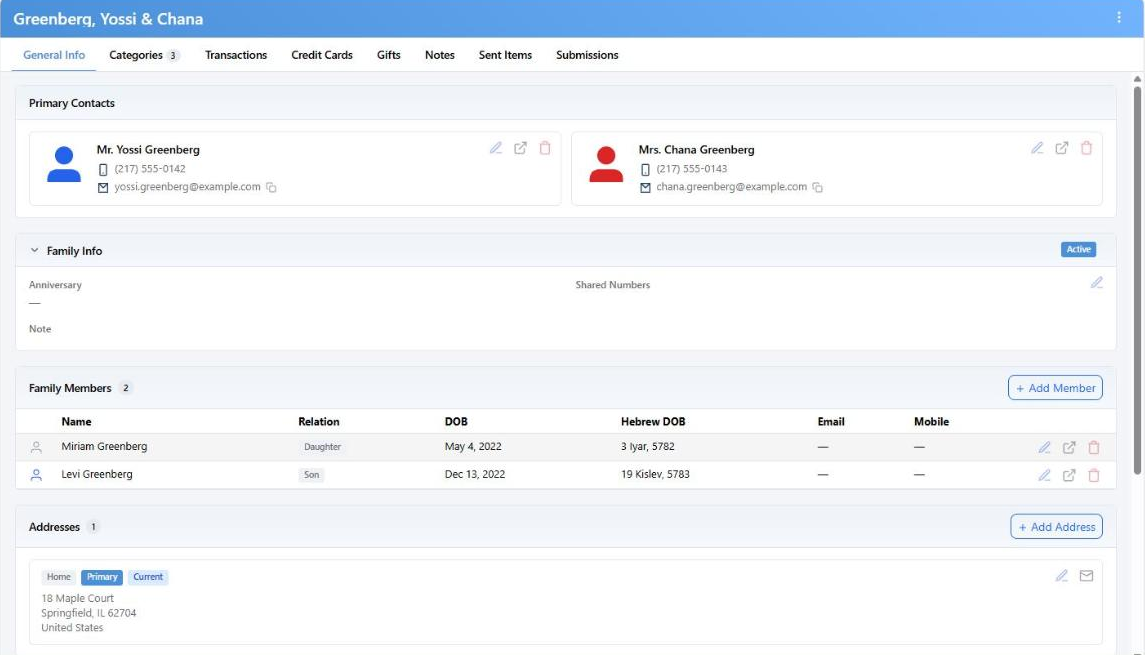
The General Info tab. Everything else about the family sits behind the tabs along the top.
The Tabs
| Tab | What's on it |
|---|
| General Info | Contacts, members, addresses and the Members Portal panel. |
| Categories | Which family categories they are in, with start and end dates. |
| Transactions | Their payments and bills. This is where you add, edit and delete them. |
| Credit Cards | Cards and eChecks saved for this family. |
| Gifts | Appreciation gifts they have received. |
| Notes | Notes and follow-ups about the family or one member. |
| Sent Items | Every email CMS has sent them, with opens and clicks. |
| Submissions | Web form submissions matched to this family. View only. |
A tab only appears if the matching module is on and you have permission to read it — a user without Credit Cards access simply doesn't see that tab. CMS opens the family on whichever tab you used last.
The Header
On every tab except General Info, each primary contact gets a chip next to the family name with their first name and best contact. Click a chip for their birthday (English and Hebrew), mobile, email and work number — so you can reach someone without leaving what you were doing.
The ⋮ menu holds Delete family. CMS checks first: a family with any payment or bill cannot be deleted at all, and you'll be told so. Otherwise you get a confirmation that spells out what goes with it, including notes.
Primary Contacts
One tile per primary — typically him and her. Each shows the photo, name, date of birth with its Hebrew equivalent, and their own mobile, email, work and home numbers. Blank rows are hidden rather than shown empty.
If a primary has no photo in CMS and you have Google Contacts connected, their Google photo can fill the gap, with a small refresh button in the corner of the tile to pull Google's latest.
+ Create Primary appears where a second primary is missing — for a widow, a single member, or a family where only one spouse has been entered.
Family Info
The anniversary, the shared household numbers, and the family note. The chip on the right says Active or Inactive; a Private family is one only certain users can see at all.
The pencil opens Edit Family, which is also where contact methods live:
- Primary — one per type. Turning it on for one number turns it off for the others.
- No Send — leave this one out of outreach: calls, bulk emails.
- No Trans — leave it out of receipts, statements and other transactional mail.
A shared mobile, email or work number asks "Whose mobile is this?". Pick a member and it moves to that person when you save. New rows you add can only be Home or Other; anything personal belongs to a member.
Family Members
Everyone else in the household — children, parents, and members marked deceased — with their relation, dates of birth in both calendars, email and mobile. Click a name to open that person's own page.
A member who also belongs to another family is only removed from this family when you delete them here. They keep their record in the other one.
CMS stops you from deleting the only primary contact — promote somebody else first, or delete the whole family. It also stops you deleting a member who has notes attached until the notes are gone.
Addresses
Each address carries its own flags:
| Flag | Meaning |
|---|
| Primary | The mailing address. Exactly one per family. Turning Primary on elsewhere moves it. |
| Current | They live there now. A winter address can be on file without being current. |
| No Mail | Leave this address out of mail merges and bulk sends. |
A family must always keep at least one address, so the primary address and a sole address have no Delete option. An address used on any transaction can't be deleted either — the history is attached to it.
When you add or edit an address, start typing the street and CMS offers suggestions that fill in city, state, ZIP and country. Label setting and Salutation setting build the names used on envelopes and letters from the primaries' names; choose Manual to write them yourself. New addresses inherit your organization's defaults.
Changing the house number or street name clears the old ZIP+4, since it no longer applies. Adding or changing an apartment keeps it.
Where an address has been through USPS address updates, a chip appears; click it for the before-and-after history of what changed.
Members Portal
Only when the portal is turned on. The chip tells you where the family stands: Can sign in, Can't sign in, Access turned off or Portal off, each with the reason underneath.
Can sign in with lists the exact emails and mobiles that will work. When one you expect is missing, the (i) explains why — it isn't marked primary, it's a landline rather than a mobile, it belongs to a child rather than a parent, the person is marked deceased, or another family already uses the same address.
From here you can also turn a family's access off and on, open View as member to see their portal read-only, and send the info-review email that asks them to check their own details.