Reports are how you ask CMS Cloud a question. Who lives in the neighborhood? Who gave last year and hasn't this year? What came in last month, by category? Every list, every label run and every set of totals comes out of the same builder.
There are three kinds, and which one you want depends on what you want back:
| Report | Gives you | Use it for |
|---|
| Contact report | A list of people | Mailing lists, labels, phone lists, who to invite, who to follow up with |
| Transaction report | A list of money | What came in, from whom, by category, by month, with totals |
| Yahrtzeit report | A list of yahrtzeits, and who to tell | The monthly letters, labels, emails and the shul list |
All three live under Reports in the sidebar and work the same way, so what follows applies to any of them.
The Reports Page
Your saved reports are listed with when they were made and who made them. A report is worth saving whenever you will want the same question answered again — and a saved report always runs against today's data, so last year's "current members" report is never stale.
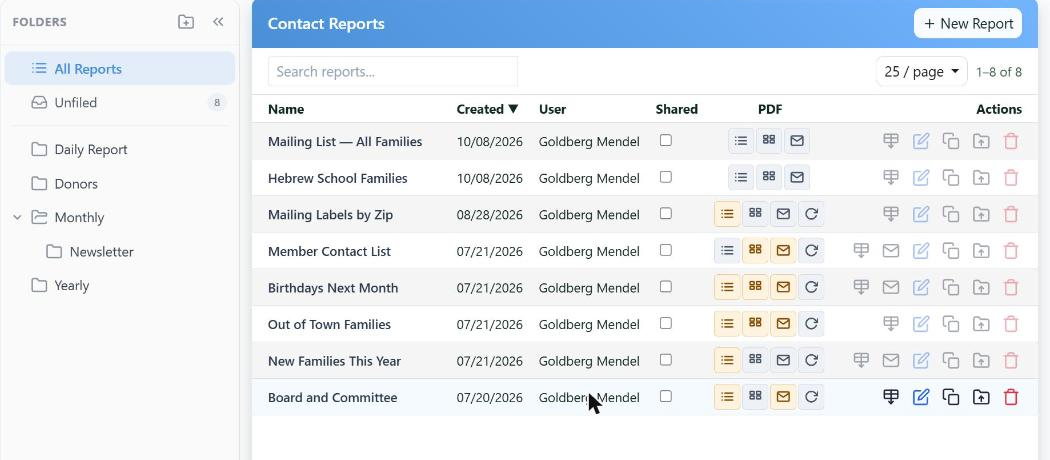
Saved reports, with folders on the left. The buttons on each row produce the output without opening the report.
| On a row | What it does |
|---|
| PDF buttons | Produce the output straight away — for a contact report, a List, Labels or Envelopes |
| Edit | Open it in the builder |
| Clone | Copy it as the basis for a similar report — the quickest way to build anything |
| Move to folder | File it away |
| Shared | Lets your other users see and run it, not only you |
Folders work like folders on a computer, including subfolders. All Reports shows everything; Unfiled shows what hasn't been put away yet. Drag a report onto a folder to file it.
Building a Report
+ New Report opens the builder. It is one screen with two tabs — Parameters, where you describe what you want, and Preview, where you see it.
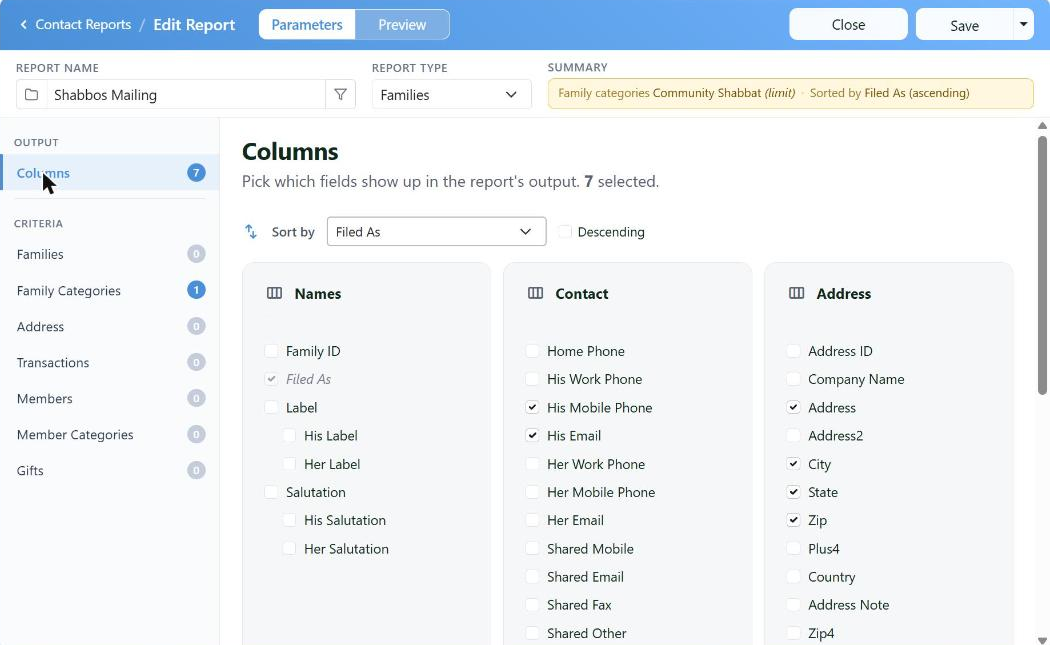
The left rail is the whole report. Each criteria section shows a count, so you can see at a glance where you have narrowed things.
Three things make up any report:
- Report type, at the top — whether you are listing families or members, payments or bills.
- Columns, under Output — which fields come back.
- Criteria — who or what is included.
Columns
Check the fields you want, grouped by where they come from — names, contact details, addresses and so on. Sort by above them sets the order, with Descending to flip it.
Take the columns you need and no more. A report with forty columns is one nobody can read, and the point of a report is the answer, not the data.
Criteria
Each section narrows the report, and the number beside it tells you how many conditions it holds. Leave a section alone and it doesn't limit anything.
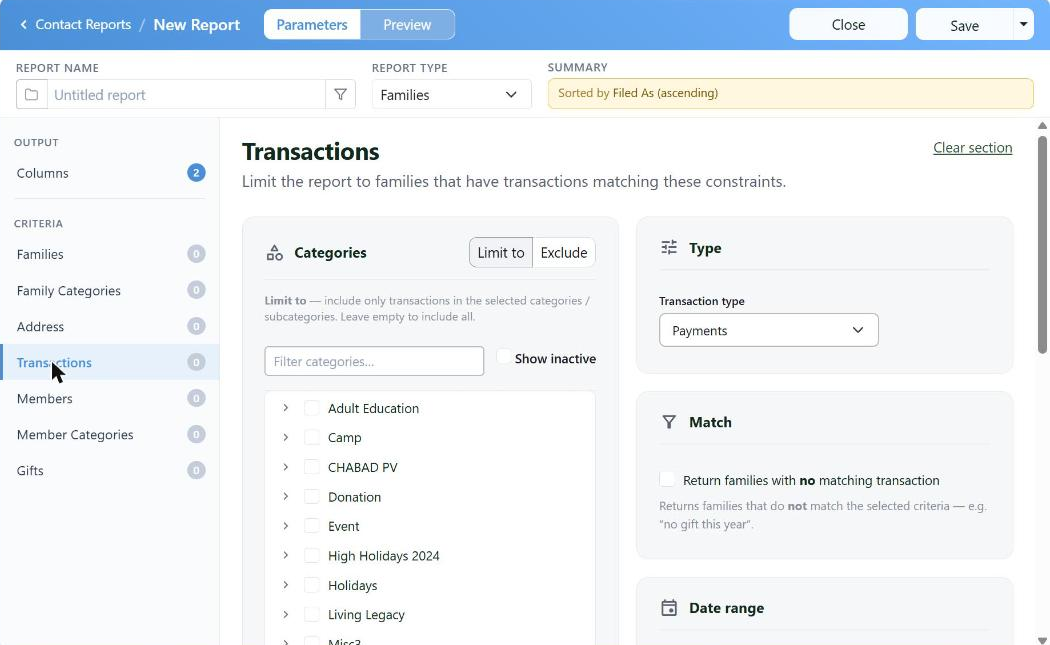
Most sections offer Limit to and Exclude, so you can say what you want and what you don't in the same report.
Two things are worth knowing about criteria in general:
- Limit to / Exclude. Limit to keeps only what you pick; Exclude keeps everything except it.
- The "no matching" box. Several sections can be turned inside out — Return families with no matching transaction is how you ask who didn't give, didn't attend, didn't get a gift. It is the most useful question a database can answer and the one people most often miss.
Clear section at the top right of a section undoes it.
Preview, Then Save
The Preview tab runs the report on the spot and shows you the first fifty rows, with a count of how many it matched in total.
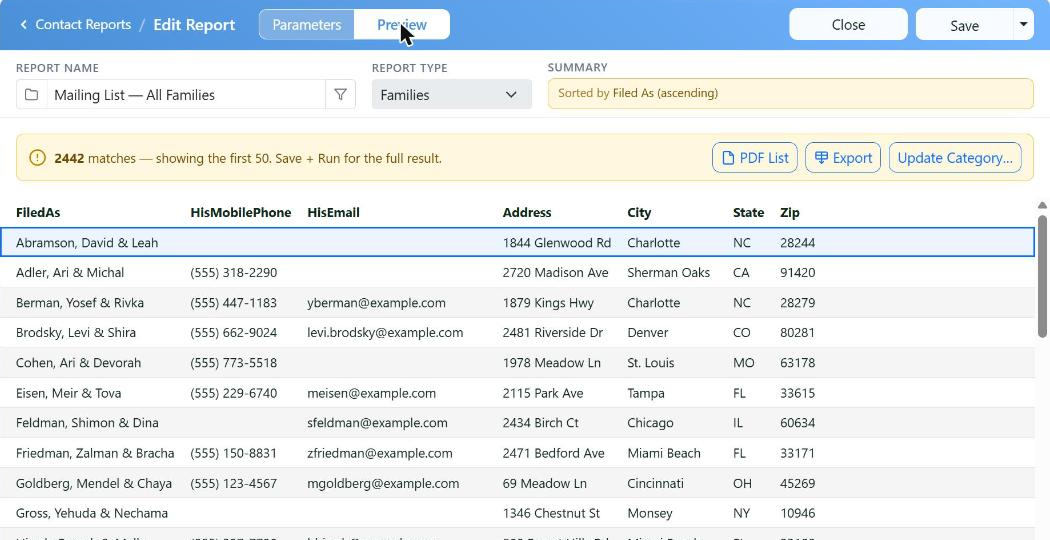
The count is the real answer; the rows are the check. Save and run for the full result.
Use the count as your sanity check. Two thousand matches when you expected fifty means a criterion isn't doing what you thought.
Save keeps the report. Give it a name you'll recognize in six months, and put it in a folder.
Getting It Out
- PDF — a printable list, and for contact reports also labels and envelopes.
- Export — a CSV for Excel.
- Email — send to everyone the report found.
- Update Category — on a contact report, put everyone it found into a category in one go.
That last one turns a report into an action. Find everyone who gave to the campaign, then tag them all as Recent Donors without opening a single family.
Next
Contact Reports covers lists, labels and category updates in detail.
Transaction Reports covers totals, subtotals and columns by year.
Yahrtzeit Reports covers the monthly run — dates in both calendars, who gets told, and the letters.