The Outbox is a pause button for outgoing email. With it on, an email doesn't leave the moment CMS Cloud creates it — it waits in a queue for however long you choose, where you can read it, fix a typo, change who it goes to, or stop it altogether.
It is the difference between noticing a mistake and apologizing for one.
Turning It On
Go to Settings → Communications → Outbox.
| Setting | What it does |
|---|
| Use Outbox | Off, every email goes straight out as it always has. On, email is queued first and the two settings below apply |
| Default delay before sending | How long an email waits before it is eligible to go — typed as 30m or 2h. Thirty minutes is a sensible starting point: long enough to catch a mistake, short enough that nobody is waiting on a receipt |
| Hold all email offline | Nothing sends by itself, no matter how long it has waited. Email piles up until you release it or send it by hand |
Think of the delay as the normal setting and Hold all email offline as the emergency brake — the switch you reach for when something is going out wrong and you need everything to stop while you work out what happened.
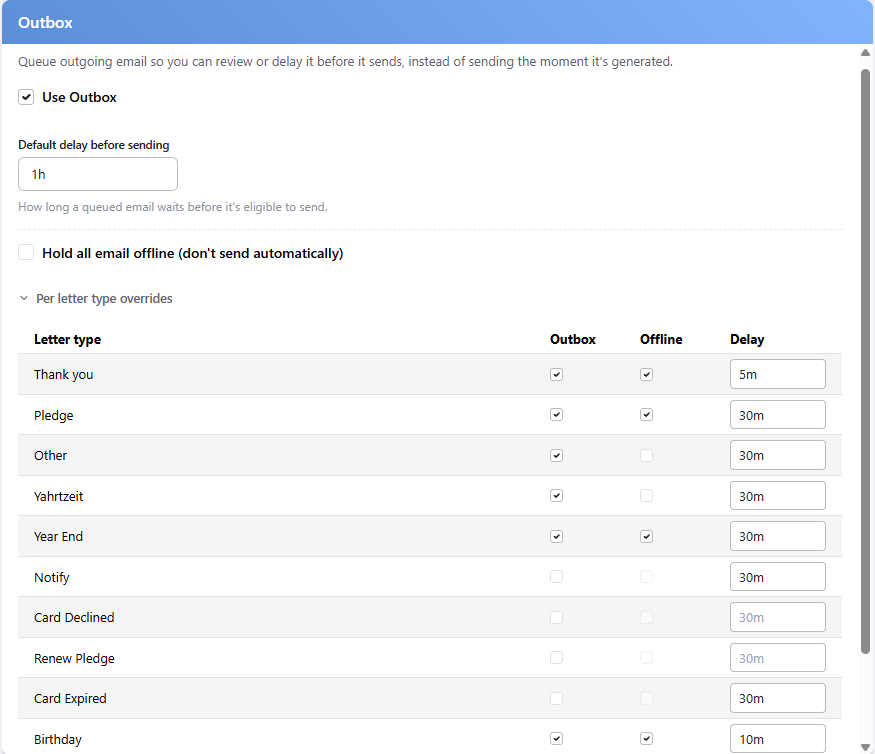
The settings, with the per-type overrides open. Card Declined and Renew Pledge skip the queue entirely; Birthday waits ten minutes.
Different Rules for Different Emails
A thank-you letter can afford to wait an hour. A form confirmation cannot — somebody just filled in your form and is watching for it. Per letter type overrides, under the same settings, lets each kind of email behave differently.
Each letter type gets its own row with its own Outbox, Offline and Delay. The rules are simple once you see the shape of them:
| Setting | What a letter type may do |
|---|
| Outbox | A type can opt out and send immediately while everything else is queued. It can't opt in when the Outbox is off for everyone |
| Delay | Any type can set its own, longer or shorter than the default |
| Offline | A single type can be held back while the rest flow normally. But when everything is held offline, no type can escape it |
The pattern: the general setting is the ceiling. A letter type can be more cautious than it, or skip the queue entirely, but it can never be less restricted than the organization as a whole.
The Outbox Itself
Open Messaging → Outbox. The dashboard also shows an Outbox Queue panel when anything is waiting, which is the quickest way to notice a queue you forgot about.
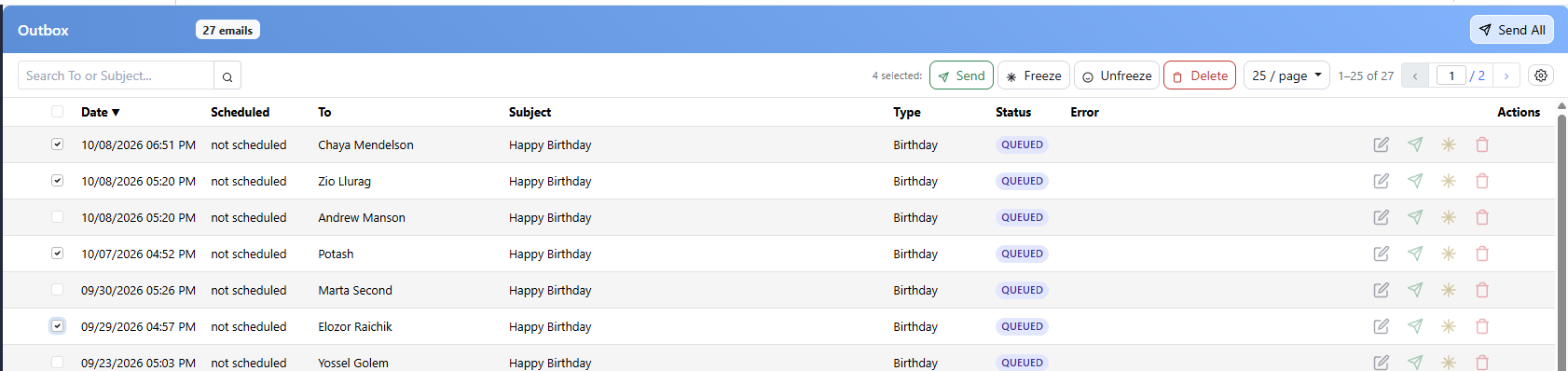
Four emails ticked, ready for a batch action. Recipient addresses are blanked here.
Every email waiting to go is listed with when it was created, when it is Scheduled to send, who it is to, the subject, its type and its status. A paperclip means an attachment; click it to see what is going along with the message.
A row reading not scheduled has no send time at all — its letter type is held offline, or the email is frozen. It will sit there until you send it by hand, which is exactly what being held means.
Search looks at the recipient and the subject. Filters & Columns narrows by date, by letter type, or down to just the failures, and chooses which columns you want to see.
What You Can Do to an Email
| Action | What happens |
|---|
| Edit | Opens the email: subject, body, the from name and address, the scheduled time, and the attachments — you can add one or take one off |
| Send now | Goes immediately rather than waiting for its time. A toast appears with Undo for a few seconds, so a misclick costs nothing |
| Freeze | This one email stops waiting for its turn and sits there until you unfreeze it or send it by hand. The emergency brake, for a single message |
| Delete | It never goes |
Tick several rows and the same actions — Send, Freeze, Unfreeze, Delete — apply to all of them at once. Send All in the header releases everything in the queue.
Send All means all of it, not just what you are looking at. Read the list first, and use the tick boxes with Send when you only mean some of them.
Two Things That Surprise People
Turning the Outbox off doesn't empty it. Emails already queued keep their scheduled time and still go. To stop them, hold everything offline or freeze them.
Changing the delay doesn't change what's already waiting. The new delay applies to emails created from then on. The ones in the queue keep the time they were given.
Who Can See It
The Outbox is its own permission, set per user under Settings → Users. Without it, a user never sees the page. Changing the Outbox settings needs the Settings permission as well.
Even with access, a user only sees the kinds of email their other permissions allow — someone without access to transactions won't see thank-you letters or invoices sitting in the queue, and Send All leaves those alone for them.
When It Earns Its Keep
- A new letter. The first time a template goes out, read one before the rest follow.
- Year-end. Hundreds of letters in one run is exactly when a wrong figure hurts most.
- A mail merge that looks wrong. Hold everything offline, check a few, release them.
- The address you typed too fast. Thirty minutes is enough time to notice.