A statement gathers everything a family owes into one document. Where an invoice is a single bill, a statement is the whole picture — the bills that are still open, the payments made against them, and what is left. Most organizations send them monthly.
Both invoices and statements are produced the same way: as a batch. You choose who is included, look over the list, and then send it by email or download it as a PDF to print.
The Invoices & Statements Page
Open Batches → Invoices & Statements from the sidebar. Every batch you have run is listed with its date, whether it went out as email or PDF, which kind it was, and how many documents it held. Click one to see its details beside the list.
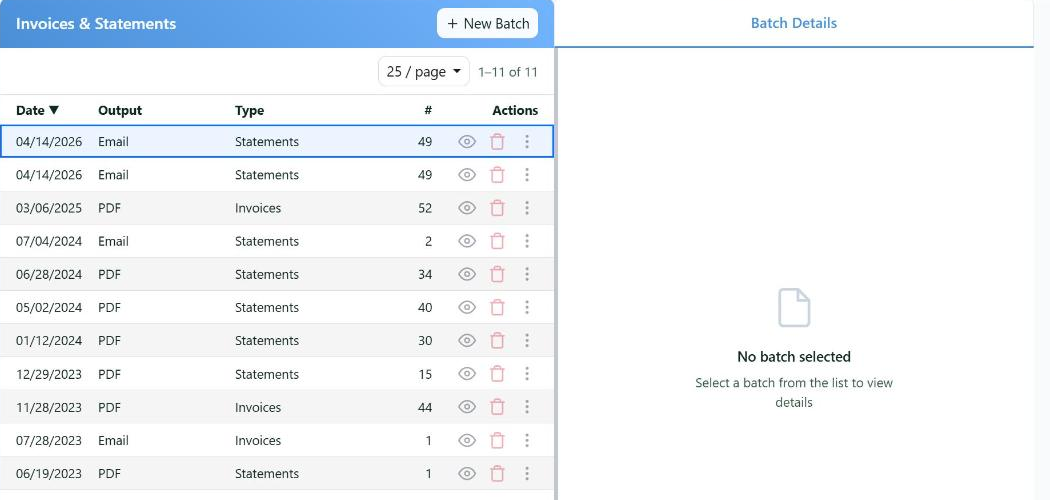
Past batches stay on the list, so you can always see what went out and when.
Running a Batch
+ New Batch opens the window where you decide what goes out.
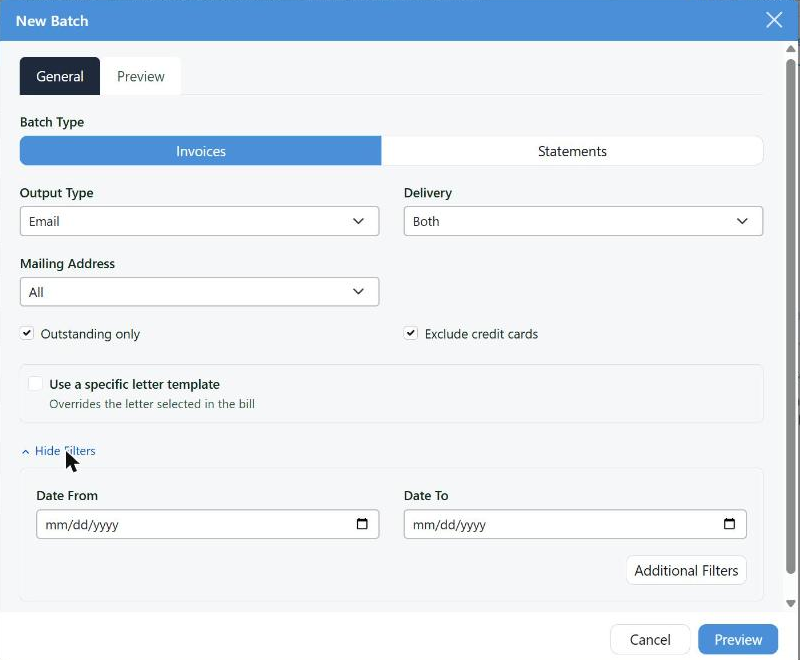
The General tab. Preview takes you to the list of what will actually go out.
| Setting | What it decides |
|---|
| Batch Type | Invoices — one document per bill. Statements — one document per family, covering everything open |
| Output Type | Email sends them, PDF produces one file to print |
| Delivery | Who to include by how they want to be reached — the families with an email address, the ones to be mailed, or both |
| Mailing Address | Which address to use when a family has more than one |
| Outstanding only | Leave out anything already paid in full. Usually what you want |
| Exclude credit cards | Skip bills that will be charged to a card automatically — there is no point asking for money you are about to take |
| Use a specific letter template | Overrides the letter chosen on the bill itself, so the whole batch goes out with the same wording and the same stationery |
Show Filters adds a date range, and Additional Filters narrows further — by category, by department, and so on — when the batch is only meant for part of your list.
Preview Before You Send
Preview moves you to the second tab and shows exactly who is getting what. This is the moment to look: remove anyone who shouldn't be included, and check a document or two reads the way you expect.
From there, Download PDF or Send Emails finishes the job.
Read the preview on the first batch of any new letter or template. A wrong figure or a broken merge field is a small thing on screen and an awkward thing in four hundred mailboxes.
Setting Up the Look
Two places decide how invoices and statements turn out, and both are worth doing once, properly, before your first real batch.
1. Numbering and the default note
Settings → Financials → Receipts & invoices holds the receipt and invoice numbering — a prefix and the next number, with the result shown underneath so there is no guessing — along with the note printed on every invoice by default.
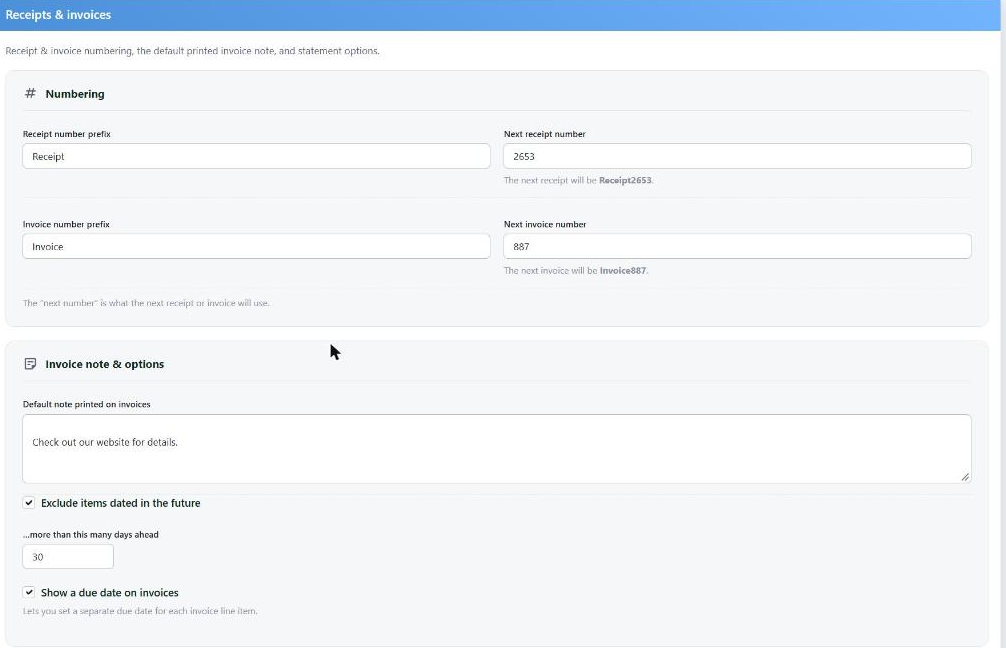
Numbering at the top; the note that prints on every invoice below it.
- Exclude items dated in the future keeps a bill dated three months out from appearing on this month's statement. The number beside it is how far ahead you are willing to look.
- Show a due date on invoices lets each line carry its own due date.
2. The letter and the stationery
The wording and the letterhead come from a Pledge letter under Settings → Communications → Letters, and the letterhead itself from a PDF template. That is covered in Custom Invoice Stationery.
If you don't set any of this up, invoices still work — they print on a plain letterhead built from your department's details. The setup is what makes them look like your organization.
One Family at a Time
A batch is for a run. For a single family, open them and go to their Bills tab — an invoice for one bill, or a statement of everything they owe, can be produced from there and emailed or downloaded on the spot.
It is the same document the batch produces, with the same letter and stationery. The usual reason to reach for it is somebody on the phone asking what they owe.