Routes turns a list of families into a drive. Pick who is getting a delivery, and CMS Cloud puts them on a map, works out the order that covers them in the least driving, numbers the stops, and hands the driver either a printed sheet or a link that opens the whole run in Google Maps on their phone.
It is built for the jobs that come round every year — Shalach Manos, Chanukah deliveries, Shmurah Matzah, hospital and shiva visits — where the list is already a category in CMS.
What's New
Routes used to ask a lot of you before it would draw a single map: a Google Cloud account, a project, a billing card with Google, an API key pasted into CMS — and even then, no more than 23 stops on a route. That is over.
- Nothing to set up. Turn on CMS Maps and build a route. No Google account, no project, no key, no card on file with Google.
- No limit on stops. Twenty stops or two hundred — CMS Maps works out the order either way.
- It ends where the driving ends. A route can finish at its last stop instead of driving back to where it began.
- The link starts where the driver is. Open it from the car and Google begins from there, whether that's the shul or their own driveway.
- Email it to the driver with a button for the whole drive and a link for every single stop.
- Addresses are fixed once. Correct a bad address here and the family's record is corrected with it.
You pay only for what you use, from the same CMS balance as your other add-ons — a few cents for an address CMS hasn't seen before, a small charge per route. Prefer your own Google account? That still works, and is covered below.
Connecting Google Maps
Routes draws on Google, so Google has to be connected first. Go to Settings → Integrations → Google Maps and pick one of two ways. (If it isn't set up yet, the Routes page itself offers both.)
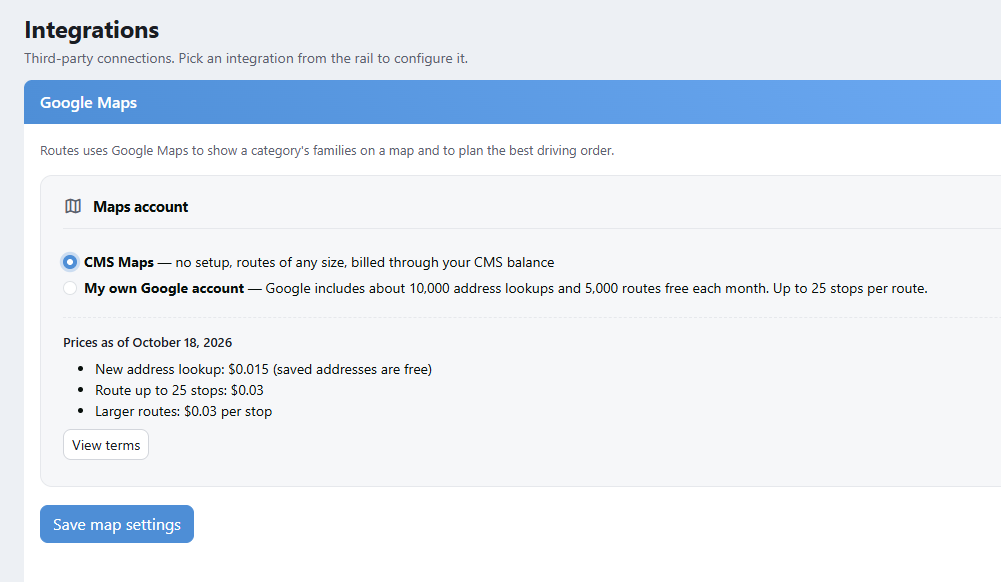
CMS Maps selected — no setup, routes of any size. The prices are listed right on the page, with the date they were last checked.
| CMS Maps | My own Google account |
|---|
| Setting up | Nothing to do. Turn it on and build a route | Create a Google Cloud project, add billing, enable five services, make a key, paste it in and test it |
| Stops per route | Any size | Up to 25 |
| Cost | Charged to your CMS balance — a few cents for a new address, a small charge per route. The prices are listed on the settings page | Billed by Google. Their monthly free allowance (around 10,000 address lookups and 5,000 routes) covers most organizations |
CMS Maps is the simpler choice, and the only one that handles a route with more than 25 stops. Your balance and an Add funds link sit right on the settings page, and a low balance shows as a banner on the Routes page rather than a failure halfway through.
Using your own key, Test checks each service Google needs to have switched on, and the key is only saved once the test passes — so a key that would have failed on the first real route fails here instead, where it costs nothing.
The steps are on that settings page, each one a link into the Google console. They are walked through, with what to do when the test fails, in Google Maps Setup.
Before You Start
- The families come from a category. Make the category first and put this year's list in it.
- Think one route per driver. Nothing stops you putting a hundred stops on one route with CMS Maps, but a driver with twenty is a happier driver.
Building a Route
Open Routes from the sidebar, switch to the Category tab and choose your category. Every family in it is listed on the left and pinned on the map.
Tick the ones this driver is taking — or click Select on map and draw a circle around a cluster of pins, which ticks everything inside it. Tagging by neighborhood is what makes the whole thing work.
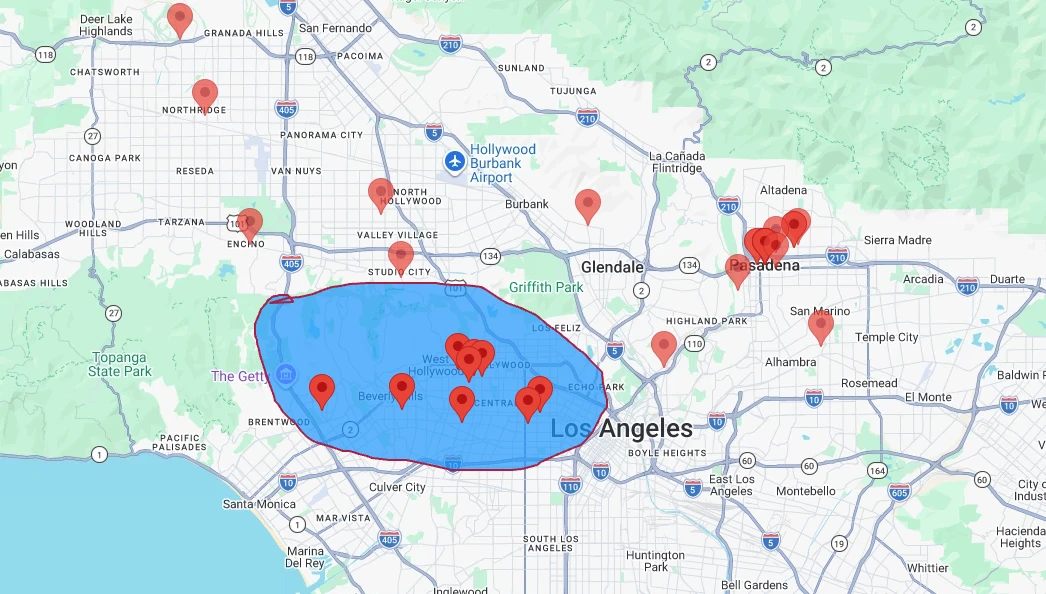
One circle around a neighborhood selects every family inside it.
Click Create route. Give it a Name a driver will recognize, such as Shalach Manos · East Side, and a Description if it helps — it prints at the top of the sheet.
Uncheck these families in the category clears the ones you just routed, so what is still checked in the category is what still needs a driver. Leave it off to keep the category as it was.
Click Show route. The map draws the drive, the list turns into numbered stops in the order to visit them, and the header shows the total distance and time. The order is Google's, worked out from live traffic — not the order you ticked them in.
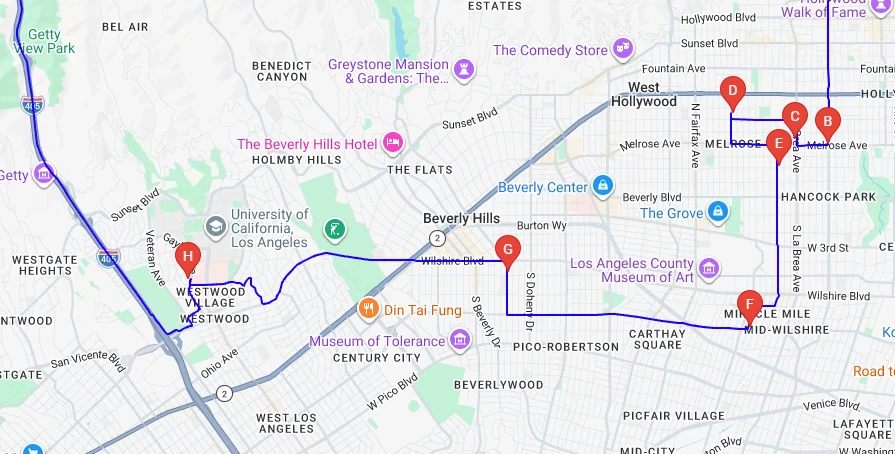
A finished route. The header totals it up — stops, miles and driving time — and the numbers are the order to drive them, not the order they were ticked.
Where It Starts and Ends
Show route uses sensible defaults: it starts at your main department and leaves now. To change any of that, open Route settings from the ⋮ menu.
| Setting | What it does |
|---|
| Start | A department, or any address you type |
| End | Last stop ends the drive wherever it works out shortest — no empty miles back to where you began. Or choose a department or type an address to finish somewhere specific |
| Date and Leave at | When the drive begins, which is what the arrival times on the printed sheet count from |
| Minutes per stop | How long at each door. Five is a reasonable guess for a delivery |
Show Route at the bottom rebuilds it with the new settings.
Last stop is usually what you want for deliveries, and it is the default on CMS Maps. Driving back to the shul at the end is real mileage for no deliveries.
Getting It to the Driver
The Google Maps link
In the ⋮ menu, Show drive opens the route in Google Maps. It carries no starting address on purpose: Google begins from wherever the driver actually is, so it works whether they set off from the shul or from home. A long route arrives as several numbered parts — finish the first, then open the next.
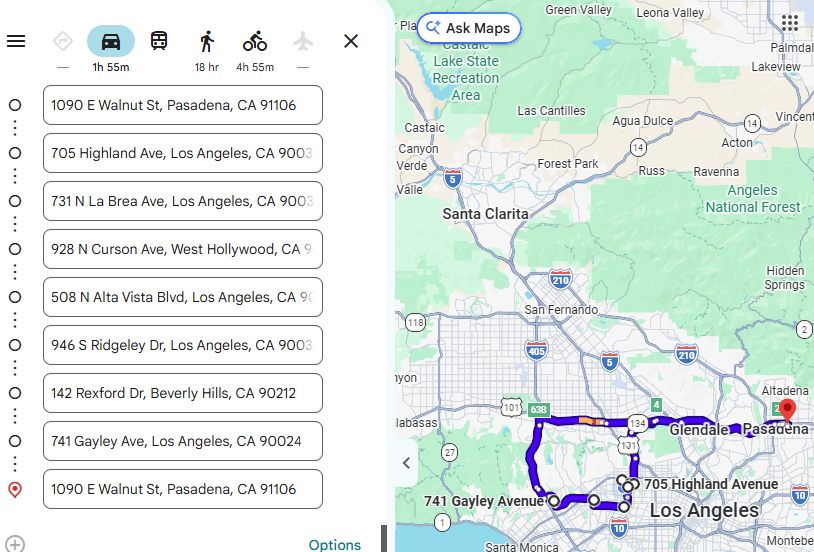
The same route in Google Maps. The first line is the driver's own location, so the drive begins wherever they are.
Email
Email sends it. The window asks who it is from (one of your verified sending domains), who it goes to, and lets you add a message. The email itself carries a button to open the drive in Google Maps, and under it the numbered list of stops, each with its own link for the one address.
If this route has been emailed before, the window says so and to whom — which saves sending the same drive to two drivers.
Print
Print produces a PDF to hand over. For each stop it prints the time to be there, the family's name with their home and mobile numbers, the address, and the miles and travel time to the next stop. Total miles and total travel time are at the end.
The phone numbers on the sheet are worth more than they look. A driver who can't find the door calls from the curb instead of driving back.
Changing a Saved Route
Pick the route on the Routes tab. From the ⋮ menu:
- Edit route brings the rest of the category back into the list so you can tick a family that was missed or untick one that has moved. Save route keeps it, Cancel puts it back as it was.
- Delete route removes the route after asking. The families aren't touched.
When an Address Can't Be Found
A family Google can't place is marked Bad address and has no pin. Click the mark and fix the address — it saves to the family, so you fix it once and every future route has it right.
Apartment and suite numbers are the usual culprit, followed by a missing city or zip. Each address is looked up once and then remembered, so the same family costs nothing to place next year.
On a Phone
The page switches between List and Map instead of showing both, and every action lives in the ⋮ menu. Everything a driver or an organizer needs is there — which matters, because this is a job people do standing in a parking lot.
Worth Knowing
- Click a family in the list and the map moves to their pin.
- Click a pin to see the family's name and address.
- Build a route of more than 25 stops on your own Google key and CMS tells you, with the choice of switching to CMS Maps or trimming the route.
- Zooming and panning the map doesn't disturb anything you have ticked.