Sent Items is the record of every email the system sent for you — receipts, invoices, yahrtzeit reminders, form confirmations and the rest. It shows what happened to each one: delivered, bounced, opened, clicked.
Open it from Messaging → Sent Items. Each family also has a Sent Items tab showing only that family's emails. Text messages are kept separately, under Messaging → SMS History.
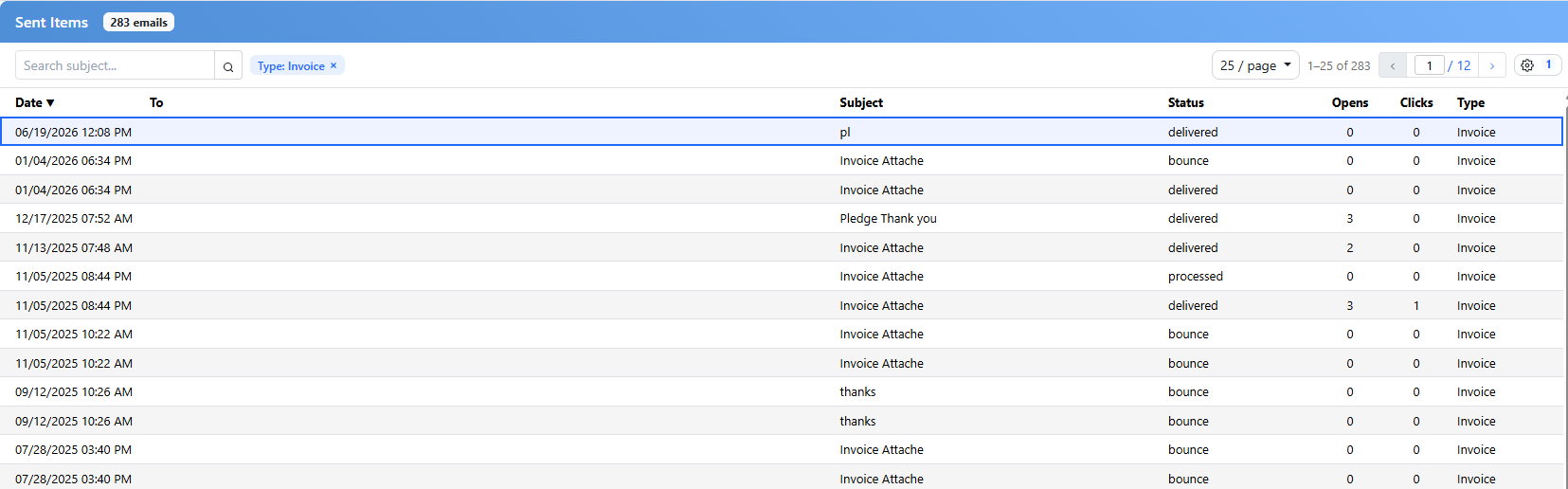
Sent Items, filtered to invoices. Recipient addresses are blanked here.
The List
| Column | Shows |
|---|
| Date | When it was sent, in your organization's timezone |
| To | The recipient's address |
| Subject | The subject line, with a paperclip where an attachment went along |
| Status | Where the message got to — see below |
| Opens and Clicks | How many times it was opened, and how many times a link in it was clicked |
| Type | What the system sent it for |
| Message | Extra detail from the mail service, which is where the reason for a problem appears |
Click a column heading to sort by it, and again to reverse it. The search box at the top finds emails by subject.
Filters and Columns
The Filters & Columns button opens a panel with four filters:
- Sent Date — a date range, with presets for the usual periods.
- Status — one status at a time.
- Type — one kind of email at a time.
- To — a recipient's address.
Press Apply to use them. Each one appears as a chip above the list, which can be removed on its own, and Clear All removes the lot. The same panel chooses which columns to show.
Your filters, sorting and columns are remembered, and the family tab keeps its own set, so one family's view doesn't follow you to the next.
Reading One Email
Click any row to see the message exactly as it was sent. Where an email had an attachment, the paperclip in its row downloads it.
Attachments are kept for 30 days. After that the email and its record remain, but the attached file is gone.
What the Statuses Mean
| Status | Meaning |
|---|
| Accepted | Handed to the mail service |
| Processed | Prepared for sending |
| Delivered | Accepted by the recipient's mail server. This is the one you want |
| Deferred | The receiving server asked us to try later. Delivery is still being attempted |
| Bounce | Refused. Usually a wrong or closed address |
| Dropped | Not sent at all — the address bounced before, or the person unsubscribed or marked earlier mail as spam |
The Message column carries the mail service's own explanation, which is the place to look on anything that didn't arrive.
A dropped email is worth acting on: the address stays blocked until it is dealt with, so that family stops receiving receipts and reminders without anyone noticing.
Opens and Clicks
Once an email is delivered, opening it and clicking a link in it are counted. Both are approximations rather than proof: a reader whose mail program blocks images may never register an open, and a plain-text reader registers neither.
Kinds of Email Recorded
- Thank you — payments and donations
- Invoice — bills and pledges
- Yahrtzeit — memorial reminders
- Birthday and Anniversary
- WebForms — confirmations from your forms
- Members Portal — sign-in codes and portal notices
- Card Declined, Card Expired and Renew Pledge
- Notify and End Year
Where the Emails Come From
Sending is set up under Settings → Communications → Email delivery: the domain your mail is sent from, an optional address to copy every email to, and, if you prefer to send under your own account and sending reputation, your own SendGrid key.
Authenticating a sending domain is handled for you — add the domain, add the DNS records it shows you, and validate. There is no mail-service account for you to create or sign in to.
Using your own SendGrid key? Delivery, open and click events need to be pointed back at CMS before this page can report them. Contact support and we'll set that up with you.