One page holds everything that happens to your cards after the pledge is set up: what is about to be charged, what was declined, which cards are expiring, and which pledges have run their course and need renewing. Open Credit Card Charges from the sidebar.
Getting a card on file and setting up a recurring pledge in the first place is covered in Credit Cards & Recurring Giving.
The page has four tabs, and a Search family box that works on all of them.
Scheduled Charges
Everything due to be charged, newest problems first. Each row shows the family, the date due, the category, the amount, and a Message from the processor if the last attempt failed.
What appears here depends on your Auto Charge setting. On Auto the tab lists only the charges that failed — the rest went through on their own and need nothing from you, so a nearly empty tab is good news. On Manual it lists everything due and not yet charged, because nothing moves until you say so.
The Period dropdown is the one control people miss. Now is what is due today. 30, 60 and 90 look ahead, which turns the tab into a forecast of expected income — useful, but nothing can be charged while you are looking at a future period.
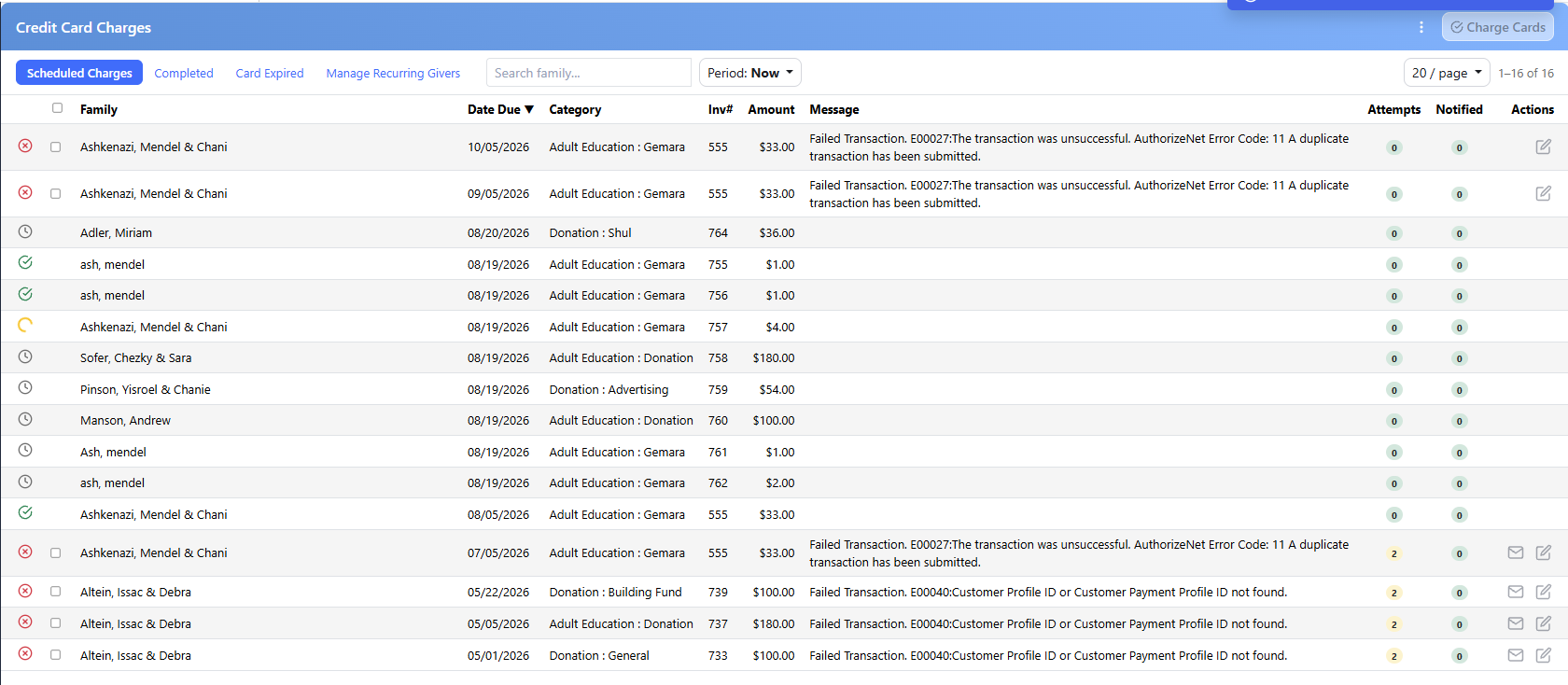
Scheduled Charges. The icon at the left of each row is its state; the Message column is the processor's own words.
| Column | What it tells you |
|---|
| Attempts | How many times this charge has been tried. Green is none, amber means it has failed at least once, red means six or more. Hover it to see every attempt with its date and the processor's reason |
| Notified | How many emails have gone to this family about this charge, so you don't send a seventh |
| Message | What the processor said — insufficient funds, card declined, expired card |
Charging
With the period on Now, each row has a checkbox and the header has a Charge Cards button. Tick what you want charged and click it; you'll be asked to confirm the count first.
The checkbox dropdown at the top of the column does the bulk work — Check All, Check Visible, and Uncheck Failed Transactions, which clears the ones that have already been declined so you charge only the clean rows.
Unticking a row is a decision, not just a skip. That charge is set aside and won't come back ticked next time, which is how you take something out of the run for good.
Rows turn into a spinner while they are being charged, then a green check or a red cross with the reason. If your Scheduler is set to Auto, this all happens by itself at the set time and you are only here to deal with what failed.
Completed
Recurring pledges that have finished — the last scheduled payment has been charged and nothing more will come in unless somebody asks. This tab exists so that doesn't quietly become a lapsed donor.

Completed pledges waiting to be renewed, with the five row actions on the right.
Each row offers:
| Action | When to use it |
|---|
| Renew | Starts the next round with the same family, category, amount and schedule. Check the dates and amount, adjust if the donor is raising it, save |
| Send Letter | Emails the donor to ask about renewing |
| Snooze | Pick a date and it disappears until then — for "call me after Pesach" |
| Dismiss | Takes it off the list for good. For a donor who has said no |
| Edit | Opens the original bill |
Renewing before the last payment goes through is far easier than restarting a lapsed pledge, so work this tab before the pledge actually ends rather than after.
Card Expired
Pledges whose card has expired, with the masked number and expiration shown in red. A live pledge on a dead card simply stops collecting, and this is where you catch it.
- Edit Credit Card — the donor sent a new card, or only a new expiration date. Update it here and the pledge carries on.
- Send Letter — ask the donor for the new details.
- Dismiss (Remove Card) — takes the card off that bill. The bill stays; it just stops being charged automatically.
The Emails
Each tab sends its own kind of email — Declined from Scheduled Charges, Renewal from Completed, Expiry from Card Expired. The envelope icon on a row sends one; the ⋮ menu in the header sends a batch to everyone on the tab at once.
Writing them, the fields you can drop into them, and the batch send are covered in Card Emails: Declined, Renewal and Expiry.
The same header menu has Export CSV, for working the list in a spreadsheet or handing it to someone to phone through.
Manage Recurring Givers
The fourth tab is a roster of the families giving regularly — who is active, who has slipped, who gave how much over the last year — rather than a list of individual charges. Your organization names it; Chai Club is the default.
It has an article of its own: Chai Club.
Worth Knowing
- A family's name is a link — it opens their record in CMS.
- Sort by any column heading; the page remembers your page size.
- Completed pledges also turn up in the CMS Today email, so the follow-up reaches you without opening the page. Turn it on under Settings → Scheduler → Notifications.
- The Completed tab lists bills that have a card, more than one payment in the schedule, and are fully paid. Whether a category's bills are eligible is set per category with Add To Completed.