Adding a family is the first thing most people do in CMS Cloud, and it is deliberately quick: one window, the husband and wife side by side, an address, and you are done. Everything else — children, donations, categories, notes — is added afterwards on the family's own page.
Where to Start
Open Families from the sidebar and click + Add Family at the top right. The same button sits on a family's page, so you can add the next one without going back to the list.
Prefer to watch? Video: Adding a Family runs about two and a half minutes, start to finish.
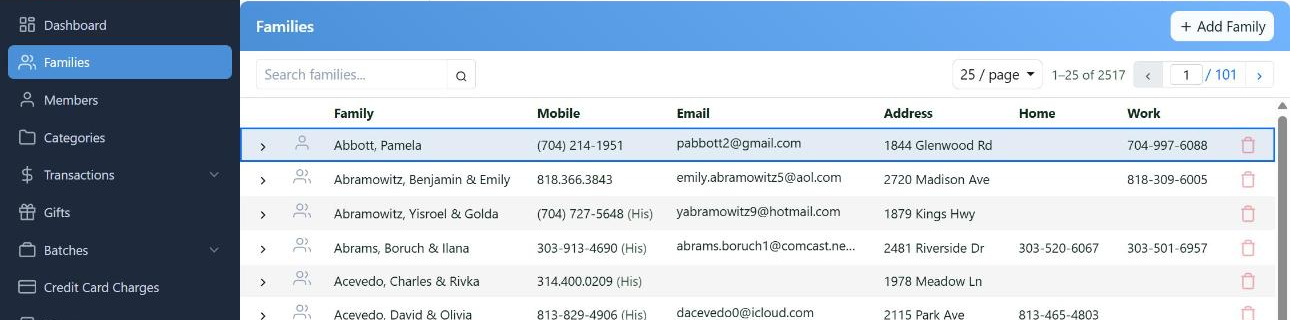
Add Family, top right of the Families list.
Filling It In
The window has two columns, Him and Her. Fill in either or both — a single person is a family of one, and nothing forces you to use both sides.
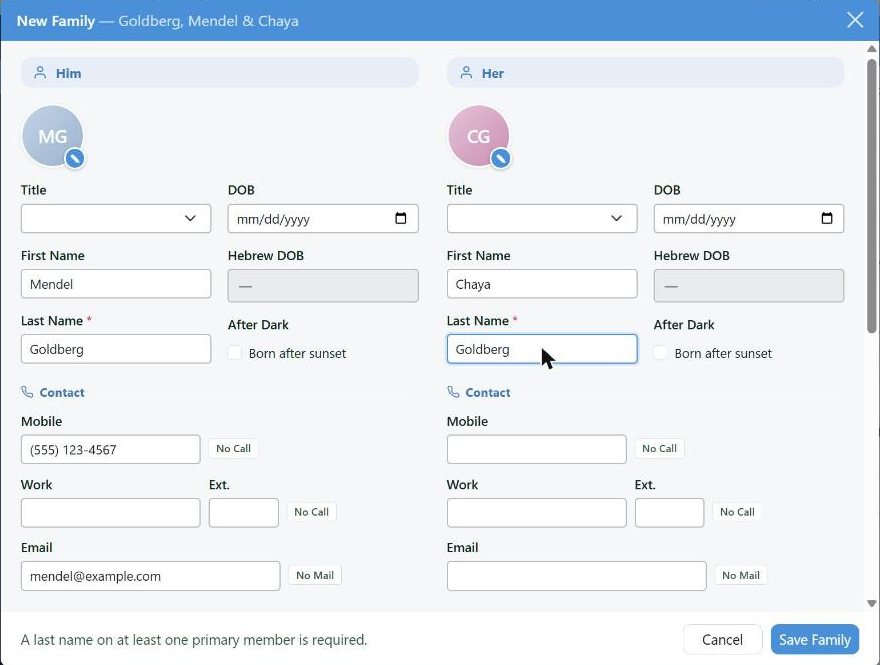
The title bar builds the family name as you type, so you can see how the record will be filed before you save.
| Field | What to know |
|---|
| Last name | The only field CMS insists on, and only on one of the two. Type his and hers fills in to match — change it if the family uses two names |
| Title | Rabbi, Mr., Mrs. and the rest. It is what letters and labels open with |
| DOB | Enter the English date and the Hebrew date is worked out for you. Born after sunset moves the Hebrew date to the next day |
| Mobile, Work, Email | Typed plainly — a phone number formats itself. No Call and No Mail beside a field mark it as not to be used for mass contact |
The Address
Start typing the street and CMS suggests real addresses as you go. Pick one and the city, state and zip fill themselves in.
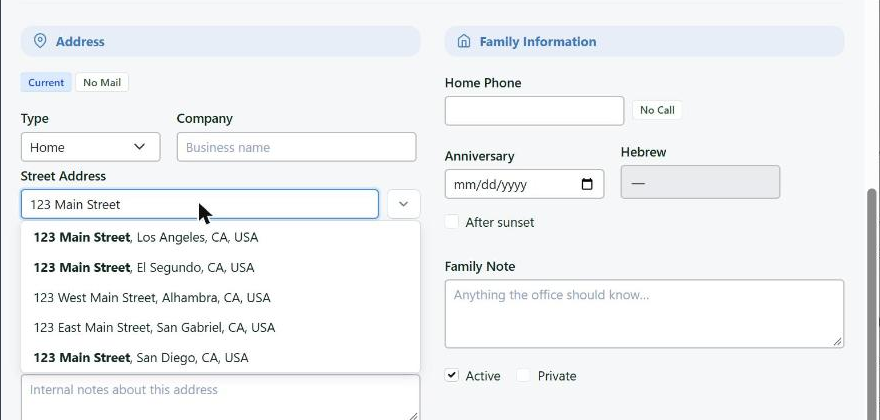
Pick a suggestion and the rest of the address fills itself in.
Beside the address are two settings that decide how this family is addressed:
- Label setting — how the name reads on an envelope, on a label, and in the address block of a letter.
- Salutation setting — how a letter opens.
Show label preview and Show salutation preview underneath show you the result in the family's own names, so you are not guessing what Contemporary or Personal will produce.
On the right, Family Information holds the home phone, the anniversary (English, with the Hebrew date worked out, and After sunset if it applies), and a Family Note for anything the office should know.
If the Family Is Already There
As you type, CMS quietly looks for a family you already have. If it finds one, a banner appears at the top of the window naming the match and what it matched on — the email, the phone or the address — with Cancel & view family to go and look.
Take the banner seriously. Two records for one family is the single most common mess in a database: half the giving history on one, half on the other, and two letters in the same envelope. It is far easier to notice here than to merge later.
Saving
Save Family finishes. A message confirms the family was added and offers Open family, which takes you straight to the new record.
Two things stop a save, and both say so at the bottom of the window: no last name on either person, and an email address that isn't a real address. Fix the field and the button comes back.
Cancel closes without saving, and asks first if you had typed anything.
What Comes Next
The window holds a couple and one address on purpose — it is the fast path, not the whole record. On the family's page you can add:
- Children and other members, each with their own birthday, contact details and yahrtzeits.
- More addresses — a winter address, a business address.
- Categories, which is how the family ends up on your Shabbos list, your Shalach Manos route or your mailing.
- Donations, pledges and notes.